
The 3-2-1 Backup Rule Explained: Never Lose Files Again
Imagine this: Your laptop won’t turn on. On it are years of family photos, your side-business invoices, maybe even your thesis draft. A tech friend says, “The drive’s dead.” In a few seconds, everything that mattered on that device is gone.
Stories like this are incredibly common. Surveys show that more than 70% of everyday users have already experienced data loss at least once, and over half report losing data through accidental deletion, hardware failure, or security incidents. For businesses, even a single outage can cost from tens of thousands to hundreds of thousands per hour when you factor in lost sales, staff downtime, and recovery work. Data loss isn’t rare or theoretical—it’s normal life in 2026.
The good news: protecting yourself doesn’t have to be complicated or expensive. With one well-designed backup strategy, you can turn a potential catastrophe into a mild inconvenience. The simplest, most trusted approach is the 3-2-1 backup rule—used by IT pros, recommended in NIST-aligned guidance, and embraced by major backup vendors worldwide.
This guide walks you through the 3-2-1 rule in plain language, with practical steps for beginners and small businesses. Think of it as a friendly tech mentor sitting beside you, helping you bulletproof your files—effortlessly.
What Is the 3-2-1 Backup Rule?
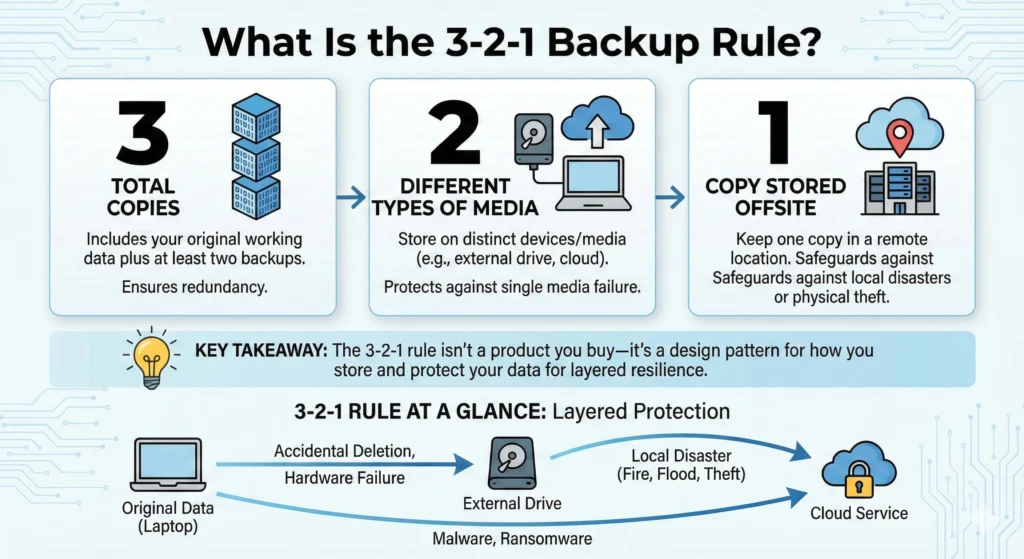
The 3-2-1 backup rule is a simple formula for keeping your data safe:
- 3 total copies of your data
- 2 different types of storage media
- 1 copy stored offsite
Importantly, those three copies include your original working data plus at least two backups. So, if your laptop is the original, a backup to an external drive and another to a cloud service would satisfy the rule.
Security experts, backup vendors, and government-aligned guidance all treat 3-2-1 as a gold standard because it eliminates single points of failure and provides layered resilience against accidents, disasters, and cyberattacks. Instead of hoping nothing goes wrong, you design your setup so that when something does go wrong, you still have clean, accessible copies.
Think of it like having multiple house keys: one on your keyring, one in a drawer, and one at a trusted friend’s place. Even if you lose two, you’re still not locked out.
Key Takeaway: The 3-2-1 rule isn’t a product you buy—it’s a design pattern for how you store and protect your data.
A great visual here is a simple infographic: “3-2-1 rule at a glance” with three icons (computer, external drive, cloud) and arrows showing how each copy protects you from different types of problems.
Why the 3-2-1 Backup Strategy Works
To appreciate why 3-2-1 is so powerful, look at the main ways data gets lost:
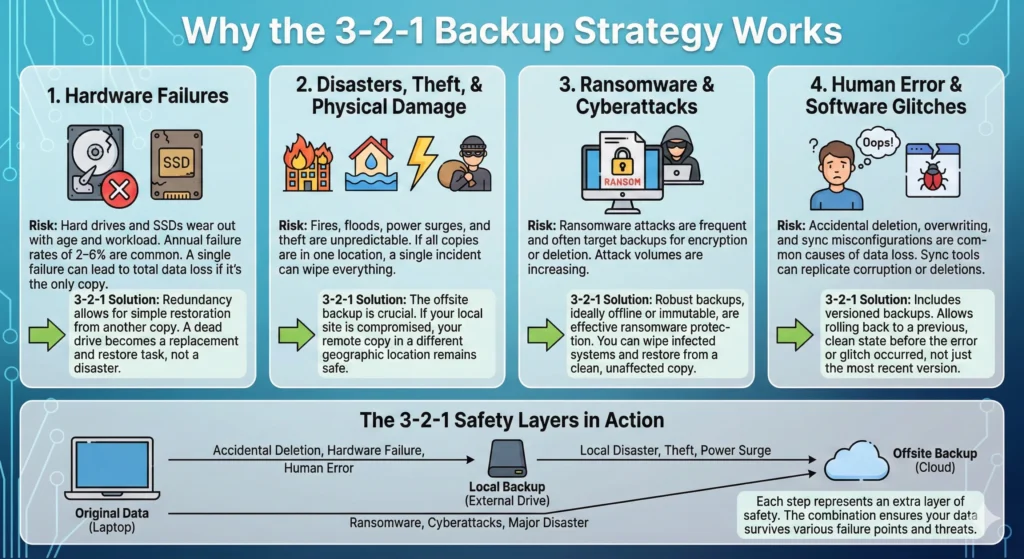
1. Hardware failures
Hard drives and SSDs wear out. Large-scale studies suggest that consumer hard drives see annual failure rates in the low single digits, often around 2–6% depending on model, age, and workload. That sounds small—until your drive is the one unlucky 2–6%.
If you have only one copy of your data on that drive, its failure is game over. With 3-2-1, a dead drive is just an errand to buy a replacement, then a restore operation.
2. Disasters, theft, and physical damage
Fires, floods, power surges, and theft don’t care how careful you are. Surveys of businesses show around two-thirds have experienced significant data loss, often tied to physical or environmental events. If all of your copies live in the same room—or worse, on the same device—a single incident can wipe everything.
That’s where the offsite backup shines: if your house or office is compromised, your remote copy still exists safely elsewhere.
3. Ransomware and cyberattacks
Ransomware has exploded in recent years. One widely cited forecast found that by 2021 a business was hit by ransomware roughly every 11 seconds, with attack volumes continuing to climb and projected to reach every few seconds in the coming years. Many of those attacks specifically try to encrypt or delete backups.
Modern guidance from NIST-aligned projects and security vendors emphasizes robust backups—ideally including offline or immutable copies—as one of the most effective forms of ransomware protection. If attackers can’t modify all your backups, you can simply wipe infected machines and restore from a clean copy.
4. Human error and software glitches
Accidental deletion, overwriting files, or sync misconfigurations are among the top causes of data loss for everyday users. Sync tools (like cloud drives) are useful, but if they just mirror the current state, they can happily sync corruption or deletions everywhere.
A good 3-2-1 design includes versioned backups, so you can roll back to “last week’s version” instead of being stuck with whatever mess exists today.
Picture a simple diagram: Original data on your computer → Local backup on an external drive → Offsite backup in the cloud. Each arrow represents one extra layer of safety if the previous step fails.
Understanding the Three Components
Let’s unpack each part of the backup strategy 3 2 1 with examples you can copy.
1. “3” – Three copies of your data
You need at least three copies:
- The original – your working files on your PC, laptop, server, or phone.
- First backup – usually a fast, local backup (external drive, NAS).
- Second backup – typically an offsite or cloud backup.
Home example:
- Original: Photos and documents on your laptop.
- Copy 1: Automatic backup to a USB external drive.
- Copy 2: Encrypted cloud backup to a reputable provider.
Small business example:
- Original: Accounting system and customer database on a local server.
- Copy 1: Nightly backup to a NAS in the office.
- Copy 2: Daily encrypted backup to a cloud storage or backup service in another region.
2. “2” – Two different media types
Using two different storage media types protects you from technology-specific problems. If all copies are on identical drives in the same box, a shared flaw (firmware bug, power surge, RAID controller failure) can damage them all at once.
Common combinations:
- Internal SSD or HDD + external USB drive
- Internal SSD + NAS (network-attached storage)
- Local drive + cloud storage
- NAS + tape or cloud object storage
Guidance aligned with NIST recommendations and major backup vendors consistently calls for at least two different storage types to avoid a single point of failure.
3. “1” – One offsite copy
The offsite copy is your “in case everything here burns down or is encrypted” safety net. This can be:
- A true cloud backup service.
- Encrypted backups stored in object storage (e.g., S3-compatible).
- A drive rotated regularly to another location (home vs office).
NIST-linked ransomware recovery guidance explicitly stresses having backups in secure storage, separate from production systems, so they remain usable when an incident hits. For most individuals and small businesses in 2026, the easiest offsite option is a reputable cloud backup provider with versioning and strong security controls.
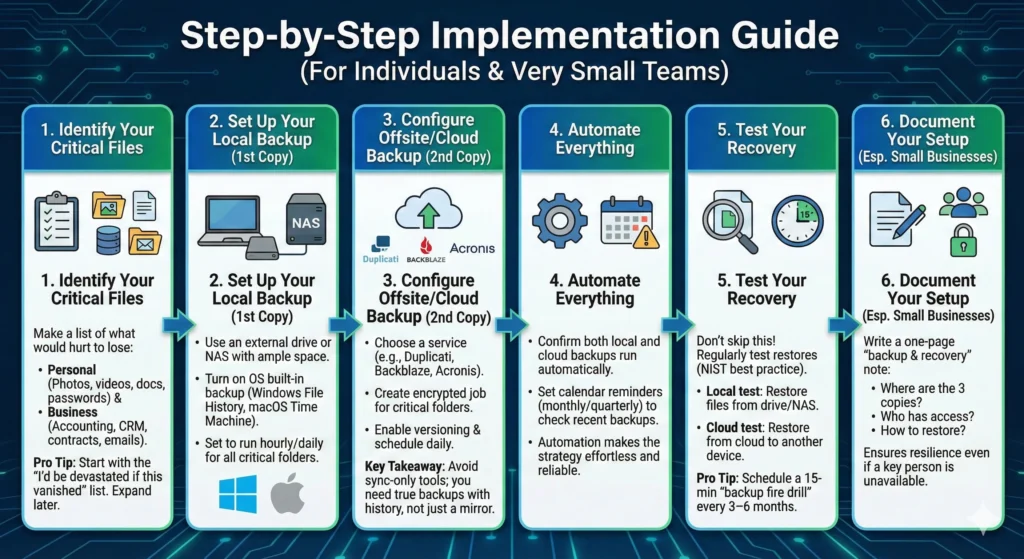
Step-by-Step Implementation Guide (For Individuals and Very Small Teams)
Here’s how to put the 3 2 1 data backup strategy into action without getting overwhelmed.
1. Identify your critical files
Make a quick list of what would genuinely hurt to lose:
- Personal: Photos, videos, documents, school work, creative projects, password manager backups.
- Business: Accounting files, CRM/database, contracts, client assets, email archives, configuration files.
Pro Tip: Start with the “I’d be devastated if this vanished” list. You can always expand later.
2. Set up your local backup (first backup copy)
For most beginners, this is an external hard drive or SSD.
- Connect a drive with enough space for all your important data plus future growth.
- Turn on your operating system’s built-in backup:
- Set it to run hourly or daily, and include all the folders from your critical list.
3. Configure your offsite/cloud backup (second backup copy)
This is where your cloud backup strategies come in.
- Choose a cloud backup tool or service:
- Duplicati (free, open-source) can encrypt and send backups to many cloud storage providers, with incremental and scheduled backups built in.
- Dedicated backup services like Backblaze provide unlimited backup per computer for a predictable monthly fee (recent pricing has been around $9/month or $99/year per machine).
- Acronis and similar vendors offer integrated backup plus security features, including full-image and file-level backups and immutable options.
- Create an encrypted backup job for your critical folders.
- Enable versioning (keeping multiple past versions) and schedule backups at least daily.
Key Takeaway: Sync-only tools (like simple cloud drive folders) are helpful, but they’re not enough. You want true backups with history, not just a mirror that can sync your mistakes everywhere.
4. Automate everything
- Confirm that both local and cloud backups run automatically on a schedule.
- Set reminders in your calendar (monthly or quarterly) to quickly check that recent backups exist and look healthy.
Automation is where the “effortless” part comes in. Once configured, your backup strategies should mostly run in the background.
5. Test your recovery
This is the step people skip—and it’s why so many discover too late that their backups don’t actually work. Both NIST-aligned guidance and industry best practices emphasize testing restores regularly.
- Local test: Restore a few files from your external drive or NAS to a different folder. Open them.
- Cloud test: Restore a handful of files from your cloud backup to another device or location.
Pro Tip: Put a recurring 15‑minute “backup fire drill” on your calendar every 3–6 months. If you can restore quickly, you can recover quickly.
6. Document your setup (especially for small businesses)
- Write a one-page “backup and recovery” note:
- Where are the three copies?
- Who has access?
- How do you restore from each system?
This makes your small business backup strategy resilient even if one key person is sick, leaves the company, or is unavailable during an incident.
3-2-1 Backup Strategy for Small Businesses
For small businesses, data loss is more than an annoyance—it can be an existential threat. Studies have found that small data-loss incidents can cost from tens of thousands to over $30,000, while serious breaches and outages can quickly climb into six or seven figures. Yet many small companies still rely on a single server or a few untested external drives.
A practical small business backup strategy based on 3-2-1 might look like this:
- Primary data: On a server or cloud SaaS apps (accounting, CRM, file shares).
- Local backup: A NAS device in the office storing nightly backups of servers and key endpoints.
- Offsite backup: Encrypted copies from the NAS to a cloud backup repository or object storage in another region.
NIST-oriented backup guidance for organizations emphasizes redundancy, secure storage, and the ability to restore quickly after ransomware or other destructive events. That often means:
- Centralizing backups through a backup server or appliance.
- Using role-based access so regular user accounts can’t delete backups.
- Including employee devices (laptops, desktops) in the backup scope, not just servers.
Cost tiers for small businesses
Entry-level (solo / micro business):
- One 2–4 TB external drive (roughly equivalent to $100–150 in many markets for mid-range models).
- One per-computer cloud backup subscription around $9/month.
Mid-tier (5–20 people):
- A 4–8 TB NAS with redundant drives.
- Endpoint backup agents on key PCs and laptops.
- Cloud replication from NAS to a cloud backup provider.
Business-grade (compliance-focused or data-heavy):
- Dedicated backup server or appliance.
- NAS or SAN on-prem plus object storage in the cloud.
- Immutable backup repositories and detailed monitoring, often via tools like Veeam or Acronis.
Key Takeaway: Even the “expensive” option often costs far less than the price of a single day of downtime or a moderate data-loss incident.
Modern Variations: The 3-2-1-1-0 Rule
As ransomware has grown more aggressive, experts have extended 3-2-1 into the 3-2-1-1-0 rule for stronger ransomware backup strategy designs:
- 3 copies of your data
- 2 different media types
- 1 offsite copy
- 1 copy that is offline, air-gapped, or immutable
- 0 backup errors (verified by regular testing)
The extra “1” means you keep at least one backup that ransomware cannot touch—because it’s physically disconnected (like tape or unplugged drives) or it’s stored in an immutable format where data cannot be modified or deleted for a set retention time. Many modern platforms now offer immutable backup repositories and write-once, read-many (WORM) object storage for this reason.
The “0” is about quality: automated verification, regular restore testing, and monitoring to ensure backups are usable. Veeam, Acronis, and other vendors even provide built-in verification tools to test bootability and integrity of backups.
In 2026, pairing 3-2-1-1-0 with zero-trust security principles and AI-powered anomaly detection (for spotting unusual backup patterns) is becoming the new norm for serious ransomware protection in SMBs and enterprises.
Choosing Your Backup Media Types
Different storage options have different strengths. Your backup strategy should mix them intelligently.
Here’s a comparison of common data backup methods:
Pro Tip: For most individuals and small teams, the sweet spot is: internal drive → external drive (or NAS) → cloud backup. Tape and advanced immutability are great add-ons when your risk or compliance requirements grow.
Best Backup Tools and Software for 2026
You don’t need to become an IT engineer to implement solid backup strategies. Here are approachable tools that fit into a 3-2-1 design.
Comparison of Popular Backup Tools
Imagine a simple table or screenshot on your blog titled “Backup tools at a glance” with logos and a quick feature rundown to make this easier to scan.
You absolutely don’t need all of these. A very robust setup might be:
- Home user: Time Machine or File History to an external drive + Backblaze or Duplicati to cloud.
- Small business: Veeam or Acronis backing up servers and NAS → cloud storage, plus endpoint backups.
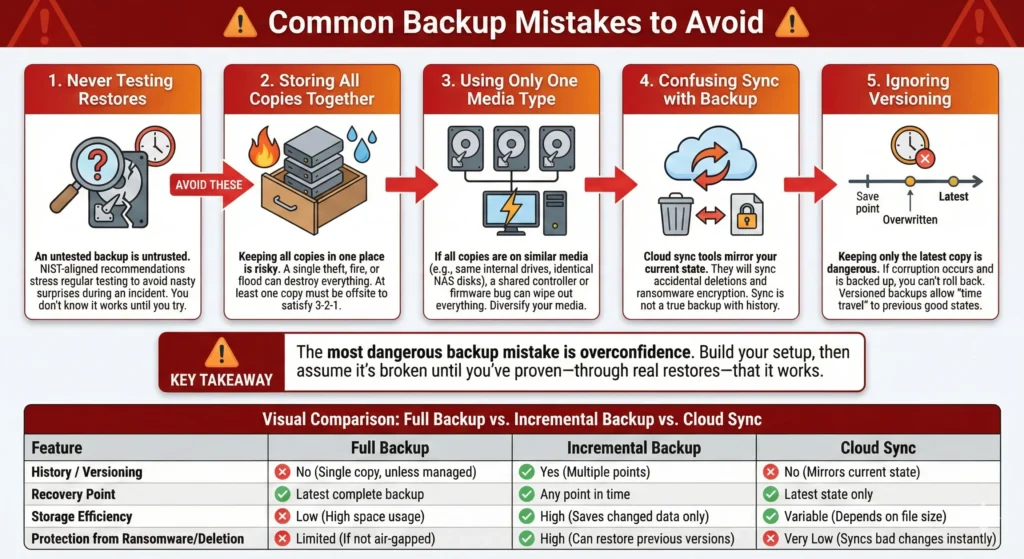
Common Backup Mistakes to Avoid
Even with a good backup strategy, certain habits can quietly put you at risk.
1. Never testing restores
A backup that has never been tested is a backup you cannot trust. NIST-aligned recommendations and industry checklists stress regular testing and validation of backups so you avoid nasty surprises during an incident.
2. Storing all copies together
Keeping three external drives in the same drawer might feel safe, but a single theft, fire, or flood can take them all out. Without at least one offsite copy, you’re breaking the core of 3-2-1.
3. Using only one media type
If your original and both backups are all on internal drives in the same machine or even on identical disks in the same NAS, a shared vulnerability (like a controller failure or firmware bug) can destroy everything. That’s why the “2” in 3-2-1 exists.
4. Confusing sync with backup
Cloud sync tools mirror your current state. If ransomware encrypts files or you accidentally delete a folder, that state gets synced too. Articles aimed at small businesses repeatedly warn not to rely on sync-only tools as backups.
5. Ignoring versioning
Keeping only the latest backup copy is risky. If corruption sneaks in and your backup overwrites the previous good version, you’re stuck. Versioned backups (and long enough retention periods) give you “time travel” back to before the problem.
Key Takeaway: The most dangerous backup mistake is overconfidence. Build your setup, then assume it’s broken until you’ve proven—through real restores—that it works.
A handy visual here would be a “Table comparing full backup vs. incremental backup vs. cloud sync” showing how backups retain history while sync does not.
Real-World Success Stories (Scenarios)
These scenarios are based on patterns seen across many incidents and recovery reports.
Scenario 1: A family saves their photos from a house fire
A family kept all their photos on a home PC and backed up weekly to an external drive. They also used a cloud backup service that continuously uploaded changes. When a fire destroyed the home, they lost the PC and the external drive—but their photos, documents, and scanned records were all restored from the cloud to a new laptop within days.
Because they followed a simple 3-2-1 pattern—original + external + offsite—they turned a devastating event into a recoverable setback.
Scenario 2: A small business recovers from ransomware without paying
A small marketing agency was hit by ransomware that encrypted their file server and several employee laptops. Attackers demanded a six-figure ransom. However, the agency’s ransomware backup strategy included:
- Nightly backups from servers to a NAS.
- Daily replication of NAS backups to immutable cloud storage.
- Regular restore tests.
They wiped the infected machines, restored clean images and data from their immutable backups, and resumed operations. They didn’t pay the ransom, and the main cost was just a few days of reduced productivity—far less than the potential loss estimated in similar incidents.
Stories like this are why so many reports now emphasize layered, tested backups as a core part of cyber resilience—not an optional extra.
Frequently Asked Questions
1. What is the 3-2-1 backup strategy?
The 3-2-1 backup strategy means keeping at least three copies of your data, on two different types of storage media, with one copy stored offsite. It’s a simple rule-of-thumb used by IT professionals and recommended in many security and resilience frameworks because it removes single points of failure.
2. How much does implementing 3-2-1 cost?
Costs vary, but a common entry-level setup is:
- A 1–2 TB external drive (often equivalent to roughly $100–150 depending on brand and region).
- A cloud backup service around $9/month per computer.
For small businesses, adding a NAS and central backup software increases upfront costs but is still usually far cheaper than the cost of even one major outage or breach.
3. Is cloud storage enough for backups?
Not by itself. Cloud sync or basic storage is vulnerable to the same accidental deletions and ransomware that affect your local files—it often just mirrors whatever happens. Cloud backup services with versioning and retention policies are excellent as your offsite copy, but you should still keep at least one local backup for faster restore and to follow 3-2-1.
4. How often should I back up?
For most people and small businesses in 2026:
- Critical business systems: at least daily, often more frequently.
- Personal data: daily or whenever significant changes occur.
Many tools support continuous or hourly backups, which is ideal. Industry guidance emphasizes matching backup frequency to how much data you can afford to lose—your “recovery point objective” (RPO).
5. What’s the difference between full, incremental, and differential backups?
- Full backup: Copies everything you’ve selected every time. Easiest to understand, but uses the most space and time.
- Incremental backup: After the first full backup, only copies changes since the last backup. Very space- and bandwidth-efficient, but restores may involve multiple points in the chain.
- Differential backup: Copies changes since the last full backup. Larger than incremental but restores are simpler.
Cloud sync, by contrast, simply keeps files in different locations synchronized and usually doesn’t provide rich restore points or independent backup chains.
A “Table comparing full backup vs. incremental backup vs. cloud sync” makes these differences visually clear.
6. Can 3-2-1 protect against ransomware?
Yes—if implemented properly, 3-2-1 is a strong defense against ransomware. You need:
- At least one offsite copy that ransomware can’t reach (e.g., immutable or offline).
- Versioning, so you can roll back to pre-attack states.
- Restricted access so attackers can’t delete backups easily.
Extending to the 3-2-1-1-0 rule (adding an offline/immutable copy and zero errors through testing) is even better for ransomware resilience.
7. What files should I prioritize?
Start with:
- Irreplaceable personal items: photos, videos, creative work, legal documents.
- Business-critical data: financials, customer databases, intellectual property, configuration and license data.
NIST-aligned guidance suggests classifying data by criticality and sensitivity, then ensuring high-priority items have robust, tested backups.
8. How do I test my backups?
At least a few times per year:
- Pick a small set of files.
- Restore them from your local backup to a different folder or device.
- Restore another set from your cloud or offsite backup.
- Open the restored files to confirm they work.
Some enterprise tools automate backup verification (booting virtual machines from backup images, verifying checksums, etc.), which helps achieve that “0 errors” in 3-2-1-1-0.
9. Do I still need 3-2-1 if I use cloud apps like Microsoft 365 or Google Workspace?
Yes. While major SaaS providers have their own resilience measures, they typically operate on a “shared responsibility” model. Accidental deletions, malicious insiders, or ransomware that encrypts synchronized local copies can still cause data loss. Many organizations now back up SaaS data to separate backup platforms as part of their 3-2-1 design.
10. How long should I keep backups?
It depends on your space, risk, and any legal or regulatory requirements:
- Home users: often keep rolling versions for 3–12 months, plus periodic long-term snapshots (e.g., yearly archives).
- Businesses: may require multi-year retention for financial, legal, or compliance reasons.
Reports on outages and breaches show that long gaps between backups are a major reason data cannot be recovered after incidents. When in doubt, keep at least a few months of history.
Conclusion: You Can Safeguard Your Data—Starting Today
Data loss is common, but it doesn’t have to be your story. In a world where more than half of people and businesses experience serious data issues and ransomware hits organizations with increasing frequency, a thoughtful backup strategy is one of the most empowering moves you can make.
The beauty of the 3-2-1 rule is its simplicity:
- Three copies.
- Two media types.
- One offsite.
From there, you can layer on modern best practices—immutable storage, offline copies, AI-powered monitoring, and zero-trust controls—to match the 3-2-1-1-0 ideal and build truly resilient systems for 2026 and beyond.
You don’t need a huge budget or a technical degree. You can start with a single external drive and a simple cloud backup, then gradually refine your setup. Each step you take—turning on File History, installing Duplicati, subscribing to a cloud backup, testing a restore—moves you from “I hope nothing goes wrong” to “I’m ready, even if it does.”
Take one action today: pick your most important device and set up that first extra copy. Then add the second, and finally your offsite backup. In just a few evenings, you can give yourself and your business genuine peace of mind, knowing your digital life is protected, safeguarded, and ready for whatever comes next.