
How to Speed Up Your Computer: 7 Essential PC Maintenance Tasks
A slow computer is frustrating, especially when you just want to get work done or relax with a game. The good news: in most cases, you can speed up your computer with a handful of safe, basic PC maintenance steps. No risky registry hacks, no “magic” optimizer tools—just clear actions that actually help.
This guide gives you a practical PC maintenance checklist focused on Windows 10 and 11. Each task explains why it works, then walks you through exactly what to do so you understand what’s happening and stay in control.
Why Is My Computer So Slow? Common Causes & Quick Fixes
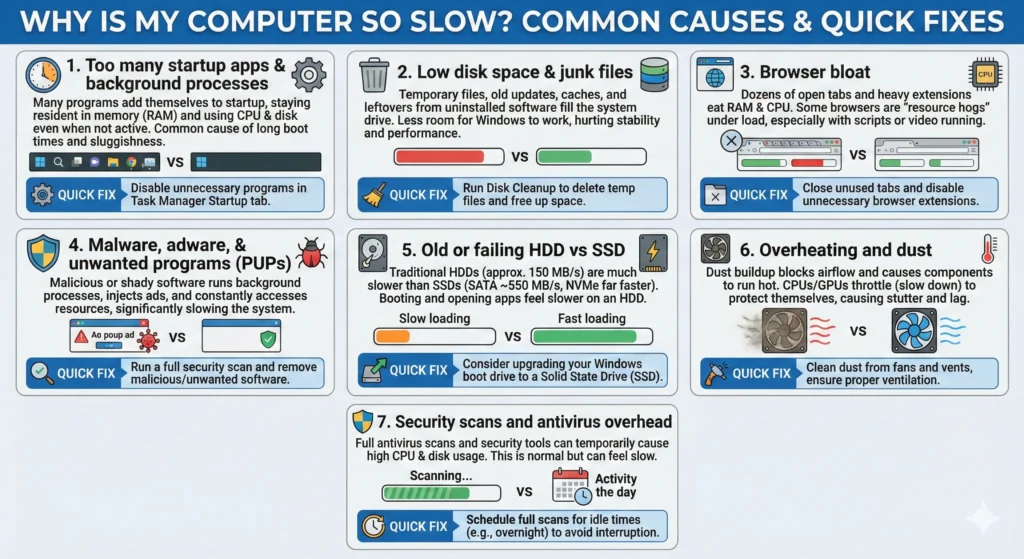
Most slow Windows PCs suffer from a combination of these issues:
- Too many startup apps and background processes
Many programs add themselves to startup, staying resident in memory and using CPU and disk even when you are not actively using them. This is a very common cause of long boot times and sluggish responsiveness. - Low disk space and junk files
Temporary files, old updates, caches, and leftovers from uninstalled software can fill your system drive. When disk space is low, Windows has less room to work with, which can hurt stability and performance. - Browser bloat
Dozens of open tabs and heavy extensions can eat RAM and CPU. Some browsers are “resource hogs” under load, especially when many tabs are running scripts or video. - Malware, adware, and unwanted programs (PUPs)
Malicious or shady software can run background processes, inject ads, and constantly access disk or network resources, slowing your system significantly. - Old or failing HDD vs SSD
Traditional hard drives (HDDs) are much slower than solid-state drives (SSDs). A typical HDD might reach around 150 MB/s, while a SATA SSD can go up to about 550 MB/s and NVMe SSDs far beyond that. If your Windows installation still lives on an HDD, everything from booting to opening apps will feel slower. - Overheating and dust
Dust buildup blocks airflow and causes components to run hot. When CPUs or GPUs overheat, they throttle—automatically slowing down to protect themselves, which you feel as stutter and lag. - Security scans and antivirus overhead
Full antivirus scans and security tools can temporarily cause high CPU and disk usage. This is normal during a scan, but it’s best to schedule them for idle times.
Three immediate checks (5 minutes)
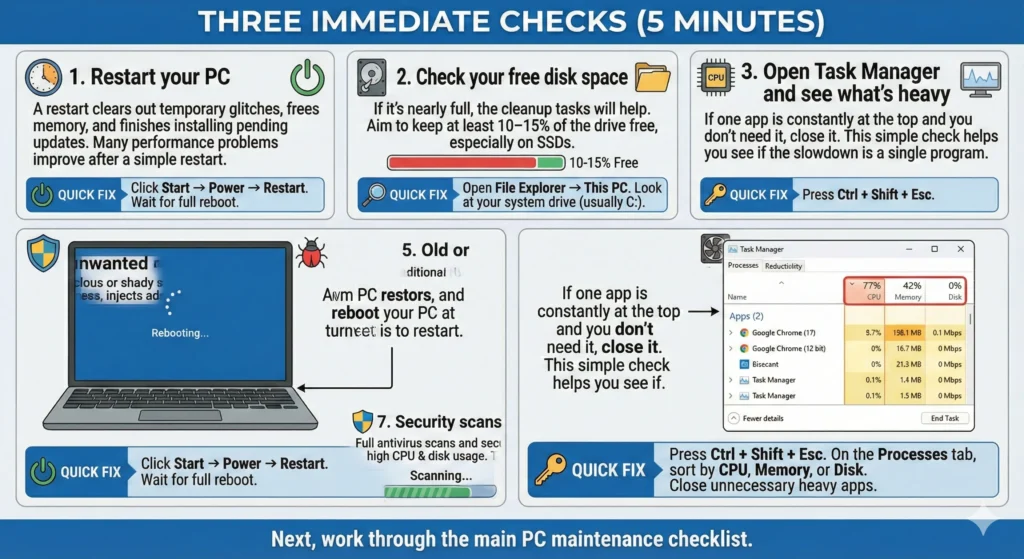
Do these before anything else:
- Restart your PC
A restart clears out temporary glitches, frees memory, and finishes installing pending updates. Many performance problems improve after a simple restart. - Check your free disk space
- Open Task Manager and see what’s heavy
Next, work through the main PC maintenance checklist.
The Essential PC Maintenance Checklist (7 Quick Tasks)
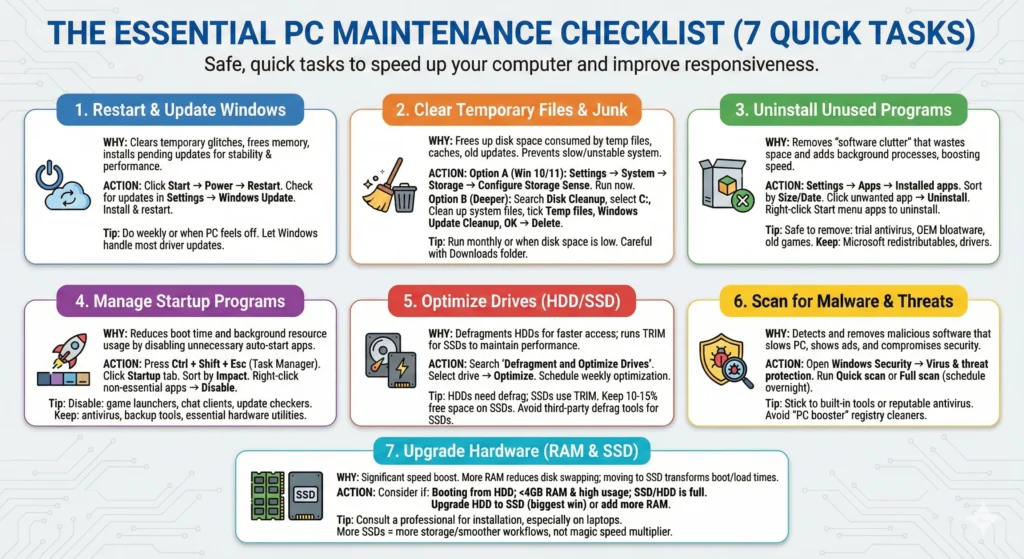
Each of these tasks is safe, quick, and designed to make your computer faster and more responsive in everyday use.
Task 1: Restart and Update Windows to Speed Up Your Computer
Why this helps
Windows and your apps accumulate temporary data and background processes over time. Leaving your PC on for days or weeks can slowly drag performance down. A restart clears memory and resets services. Keeping Windows updated also improves stability, fixes bugs, and can include performance improvements.
What to do
- Restart properly
- Save and close your work.
- Click Start → Power → Restart.
Avoid using the power button unless the system is frozen.
- Check for Windows updates
- Let Windows handle most driver updates
Doing this weekly (or whenever your PC “feels off”) is one of the simplest ways to optimize computer performance.
Task 2: Clear Temporary Files and Junk to Make Your Computer Faster
Why this helps
Temporary files, caches, and old Windows update files can consume tens or hundreds of gigabytes over time. When your system drive is crowded, Windows has less room for virtual memory and new data, which can make your computer run slow or unstable. Regular system cleanup is essential for good disk space management and fast performance.
You’ll use two built‑in tools: Storage Sense and Disk Cleanup.
Option A: Use Storage Sense (Windows 10/11)
- Open Settings → System → Storage.
- Turn on Storage Sense or Automatically free up space.
- Click Configure Storage Sense (or Storage Sense in Windows 11):
- Set how often it runs (for example: Every month).
- Recommended safe settings for most people:
- Click Run Storage Sense now (or Clean now) to perform an immediate cleanup.
This gives you automatic, ongoing system cleanup with minimal effort.
Option B: Use Disk Cleanup for deeper cleaning
- In the Start menu, type Disk Cleanup and open it.
- Select your system drive (C:) and click OK.
- Click Clean up system files.
- Tick boxes such as:
- Review carefully before ticking Downloads—only select it if you know you don’t need those files.
- Click OK → Delete Files and let it finish. It may take a while if there is a lot to clean.
Run one of these methods monthly, or sooner if your disk fills up.
Task 3: Uninstall Unused Programs and Bloatware
Why this helps
Unused software wastes disk space and can also add background services, startup entries, and scheduled tasks. Over time, this “software clutter” is a common cause of a computer running slow. Removing programs you no longer need is one of the simplest computer maintenance tips to boost PC speed.
Step‑by‑step: Uninstall apps via Settings
- Press Win + I to open Settings.
- Go to Apps → Installed apps or Apps & features.
- Sort by Size or Install date to find large or old programs.
- Click an app you no longer need → Uninstall → confirm.
- Follow any additional uninstall wizard that appears.
You can also:
What’s usually safe to remove
- Trial antivirus or “security suites” you don’t use.
- OEM bloatware (pre‑installed games, trial office suites, manufacturer “promos”).
- Old games or apps you no longer play or use.
What to keep (unless you’re sure)
- Anything clearly from Microsoft that you don’t recognize.
- Drivers or utilities from your PC/laptop brand.
- Entries named “Microsoft Visual C++ Redistributable…” or “.NET”.
- Disk controller, audio, graphics, and other hardware driver packages.
If you’re unsure about a program, search its name before removing it. A leaner list of installed programs makes your computer easier to maintain and less likely to bog down.
Task 4: Manage Startup Programs to Boost PC Speed
Why this helps
Many apps set themselves to “start with Windows,” even if you rarely use them. Every startup item delays boot time and consumes resources in the background. Managing these is one of the most effective ways to speed up your computer without uninstalling anything.
Control startup with Task Manager
- Press Ctrl + Shift + Esc to open Task Manager.
- Click the Startup tab (you may need to click More details first).
- Click the Startup impact column to sort by High, Medium, Low.
- For each non‑essential program:
- Right‑click → Disable.
Examples you can usually disable:
- Game launchers (can be opened manually).
- Chat clients, music players, cloud storage clients you rarely use.
- OEM “update checkers” and promotional utilities.
Keep enabled:
- Your antivirus / security software.
- Backup tools you rely on.
- Essential hardware utilities (touchpad drivers, some audio tools).
Disabling here doesn’t uninstall anything. It simply stops the program from auto‑starting; you can still run it whenever you want.
Task 5: Run Disk Cleanup and Drive Optimization (HDD Users)
HDD vs SSD in simple terms
- HDD (Hard Disk Drive): Spinning metal disks with a moving read head. Accessing scattered (fragmented) data takes longer because the head must move around physically.
- SSD (Solid-State Drive): Uses flash memory with no moving parts. Access is almost instantaneous and fragmentation doesn’t matter in the same way. SSDs are vastly faster for booting and loading applications.
Why this matters
- HDDs benefit from defragmentation—rearranging pieces of files so they are stored contiguously, reducing mechanical movement and speeding up access.
- SSDs should not be manually defragmented. Modern Windows uses the “Optimize Drives” tool, which runs TRIM for SSDs and defrag for HDDs automatically.
Step‑by‑step: Defragment and Optimize Drives
- In the Start menu, type Defragment and Optimize Drives and open it.
- Look at the Media type column:
- For each HDD:
- Select the drive → click Optimize.
This defragments the disk and can significantly help older systems. - Optionally, set Scheduled optimization to run weekly.
- Select the drive → click Optimize.
- For each SSD:
For SSDs, the best performance tips are:
- Keep at least 10–15% of the drive free so it can manage data efficiently.
- Avoid unnecessary write‑heavy “tweaks” or third‑party defrag tools.
Task 6: Scan for Malware and Other Threats
Why this helps
Malware, adware, and potentially unwanted programs (PUPs) can:
- Show popups and ads.
- Hijack your browser.
- Run cryptominers or spam in the background.
- Constantly access disk and network resources.
All of this can slow your PC and create security risks.
Windows includes built‑in protection through Microsoft Defender Antivirus (Windows Security), which is good enough for most users.
Run a quick or full scan with Windows Security
- Open the Start menu, type Windows Security, and open it.
- Click Virus & threat protection.
- For a fast check, click Quick scan.
- For a deeper check:
Full scans may take a long time and can make your system feel slower while they run. Schedule them during lunch, overnight, or when you’re not actively using the PC.
Avoid shady “optimizer” tools and registry cleaners
Many websites and ads promote “PC booster,” “registry cleaner,” or “system optimizer” tools that promise to speed up computer performance. Modern Windows does not need registry cleaning for speed, and Microsoft support specifically warns that registry cleaners are unnecessary and can be dangerous. Independent experts also consider these tools mostly “snake oil” with no measurable benefit and some risk of breaking your system.
Stick with:
- Windows’ built‑in tools (Storage Sense, Disk Cleanup, Windows Security).
- A reputable, well‑known antivirus if you choose a third‑party solution.
Task 7: Upgrade Hardware – RAM and SSDs to Make Your Computer Faster
Why RAM and SSDs matter for real‑world speed
- RAM (memory): If your system has very little RAM (for example, 4 GB), Windows constantly swaps data between RAM and disk. This causes high disk usage and sluggish multitasking. Upgrading to 8 GB or 16 GB (depending on your use) can dramatically improve responsiveness.
- SSDs vs HDDs: Moving Windows from an HDD to an SSD transforms boot times and app loading. SSDs can be several times faster than HDDs, and NVMe SSDs are faster still.
Does having more SSDs make your computer faster?
- Replacing an HDD with an SSD (for your Windows/system drive) is the single biggest storage upgrade for speed.
- Adding a second SSD does not automatically make your PC faster in the way more RAM does. What matters is:
- Advanced setups (like RAID) can use multiple SSDs for higher throughput, but that’s beyond basic maintenance.
So: more SSDs = more storage and sometimes smoother workloads, but not a magic speed multiplier. The biggest “make your computer faster” win is going from HDD to a good SSD and keeping it with enough free space.
When a hardware upgrade is likely worth it
Consider upgrading when:
- Your PC still boots from an HDD and feels slow even after the software maintenance in this guide.
- You have 4 GB RAM or less and Task Manager shows RAM usage near 100% under normal use.
- Your SSD or HDD is almost full and you cannot free enough space by cleanup/uninstalling.
- On a gaming PC, you already have an SSD and adequate RAM, but games still stutter—then GPU may be the next upgrade.
If you’re unsure how to physically install RAM or an SSD—especially on a laptop—consult a trusted technician or store. A quick professional hardware upgrade is often cheaper than replacing the entire computer and is core to preventive computer maintenance for older systems.
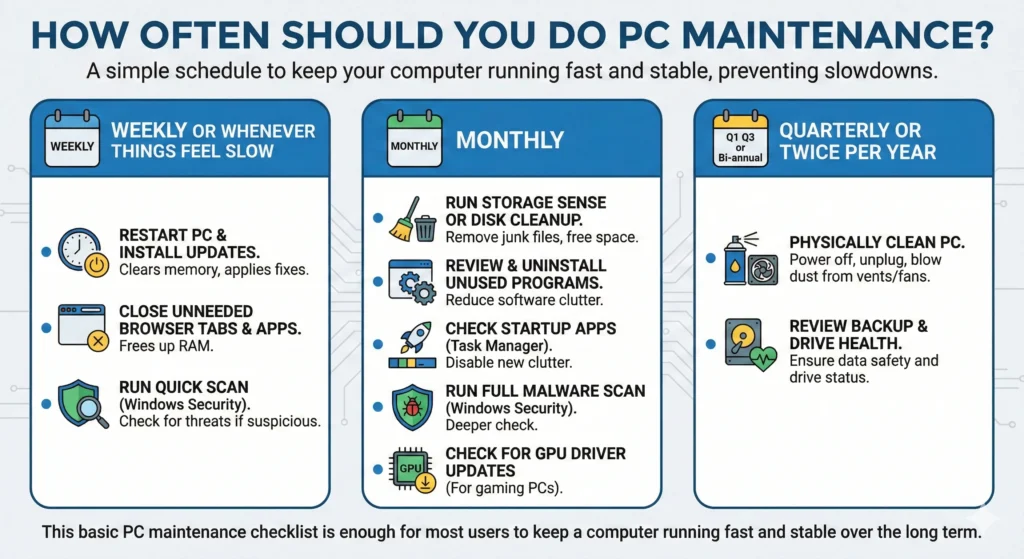
How Often Should You Do PC Maintenance?
You don’t need to “tune” your PC every day. A simple schedule is enough to prevent the “my PC suddenly feels unusable” moment.
Weekly or whenever things feel slow
- Restart your PC and let updates install.
- Close unneeded browser tabs and apps.
- Run a quick scan in Windows Security if things feel suspicious.
Monthly
- Run Storage Sense or Disk Cleanup to remove junk files and free disk space.
- Review installed programs and uninstall anything you’re no longer using.
- Check Startup apps in Task Manager and disable new clutter.
- Run a full malware scan with Windows Security.
- For gaming PCs, check for GPU driver updates.
Quarterly or twice per year
- Physically clean your PC:
- Check that temperatures are reasonable (using a monitoring tool).
- Review backup and drive health tools (many PCs include drive health monitoring).
This basic PC maintenance checklist is enough for most users to keep a computer running fast and stable over the long term.
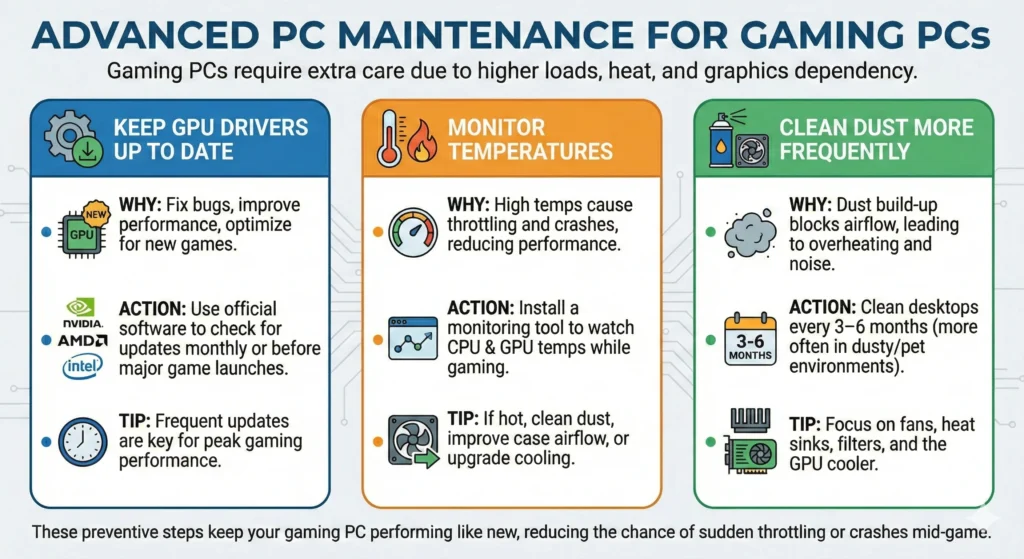
Advanced PC Maintenance for Gaming PCs
Gaming PCs run under higher loads, produce more heat, and depend heavily on graphics performance. That means they benefit from a bit of extra care.
Key best practices:
- Keep GPU drivers up to date
Nvidia and AMD release frequent driver updates that fix bugs and can improve performance in new games.- Use the official Nvidia, AMD, or Intel software to check for updates monthly or when a major game launches.
- Monitor temperatures
- Clean dust more frequently
These are preventive maintenance steps: they keep your gaming PC performing like new and reduce the chance of sudden throttling or crashes mid‑game.
Water-Cooled PC Maintenance Tips
Water‑cooled (liquid‑cooled) systems move heat away from components using liquid, a pump, waterblocks, tubing, and radiators. They can be quieter and cooler, but they do need maintenance.
Does a water cooling PC need maintenance?
Yes. Coolant ages, dyes break down, fittings can loosen, and radiators still collect dust. Skipping maintenance can lead to clogged loops, higher temperatures, and even hardware damage.
Basic checks for custom loops
- Look for leaks and stains regularly
- Check coolant level and appearance
- If your reservoir is low, top up with the coolant recommended by your cooling manufacturer.
- If coolant looks cloudy, dirty, or separated, it is time to replace.
- Replace coolant periodically
- Clean radiators and fans
Always shut down, unplug, and move the PC to a safe, dry workspace before working on the loop or cleaning.
AIO (all‑in‑one) coolers
- These sealed units don’t require coolant changes.
- Maintenance is mostly:
- Keeping the radiator and fan dust‑free.
- Replacing the unit if pump noise, leaks, or very high temperatures appear after a few years.
Computer Maintenance FAQs
What is computer maintenance?
Computer maintenance is the set of regular tasks—both software and hardware—that keep your PC running smoothly, securely, and reliably. It includes updates, system cleanup, malware scans, and physical cleaning of dust from vents and fans. A good computer maintenance checklist prevents small issues from turning into major failures.
What is the importance of computer maintenance?
Regular maintenance improves performance, reduces crashes, and extends the lifespan of your hardware. It also lowers the risk of data loss from sudden drive failure or malware. Preventive computer maintenance is generally far cheaper and less stressful than waiting for the system to become unusable and then paying for repairs.
How do you do PC maintenance?
Basic PC maintenance focuses on a few core habits: restart and update Windows, clean temporary and junk files, uninstall unused apps, manage startup programs, run occasional malware scans, and keep dust out of your system. For older or slow systems, upgrading to an SSD and adding more RAM are powerful hardware upgrades for speed.
What is PC preventive maintenance?
PC preventive maintenance means doing small, regular tasks to avoid big problems later. That includes scheduled updates, monthly disk cleanup and malware scans, periodic review of startup and installed programs, and quarterly physical cleaning. The goal is to optimize computer performance over time rather than reacting only when your computer running slow becomes unbearable.
Does a water cooling PC need maintenance?
Yes. A liquid‑cooled PC requires periodic checks for leaks, monitoring and replacing coolant, and cleaning dust from radiators and fans. All‑in‑one coolers are simpler but still need regular dusting and eventual replacement when they age.
Conclusion: A Simple Routine to Keep Your PC Fast
You don’t need to be an expert to speed up your computer and keep it that way. Most performance issues come down to a few manageable areas: too many background apps, cluttered storage, missed updates, malware, and aging hardware.
By following this seven‑task PC maintenance checklist—restart and update, clean junk files, uninstall bloatware, manage startup entries, optimize drives appropriately, scan for threats, and upgrade RAM/SSD when needed—you build a simple routine that keeps slowdowns from piling up.
Treat this article as your personal computer maintenance checklist. Save it, refer back monthly, and repeat the key tasks regularly. With a bit of consistent, preventive care, your Windows PC can stay fast, responsive, and reliable for years.