
Turbocharge WordPress Speed with WebP Images
Fast images are one of the biggest, easiest wins you can get when you want to speed up a slow WordPress site using WebP format and smart image compression techniques. You’ll see immediate gains by pairing modern formats like WebP with solid caching, lazy loading images, and careful testing instead of guessing.
Introduction
On most WordPress sites, images account for roughly 60% or more of total page weight, which means they dominate how fast or slow your pages feel. WebP typically shrinks those images by about 25–35% compared with JPEG at the same visual quality, and roughly 26% compared with PNG, directly cutting download time without sacrificing how things look. In 2025 performance tests, this kind of file size reduction produced 20–40% page load speed improvement for image-heavy pages, which is exactly the kind of change that users and Core Web Vitals can feel.
Since WordPress 5.8, you can upload WebP images directly into the WordPress media library and use them just like JPEG or PNG, as long as your server’s image libraries support WebP. That means you no longer need awkward hacks just to enable WebP images in WordPress media library; your main job now is to convert existing media, serve the right format to each browser, and make sure caching plugins WordPress users rely on don’t get in the way. This article is a step by step guide WebP support WordPress 2026 readers can follow to learn how to speed up WordPress with WebP images in a way that’s safe, reversible, and measurable.
You’ll also see how to pick the best WebP plugins for WordPress speed optimization, integrate them cleanly with CDNs like Cloudflare, and use them to improve Core Web Vitals with WebP WordPress setups on blogs, WooCommerce stores, and high-traffic content sites. The goal is simple: a practical “convert JPEG to WebP in WordPress tutorial” that you can apply today without breaking layouts, SEO, or existing workflows.
What is WebP?
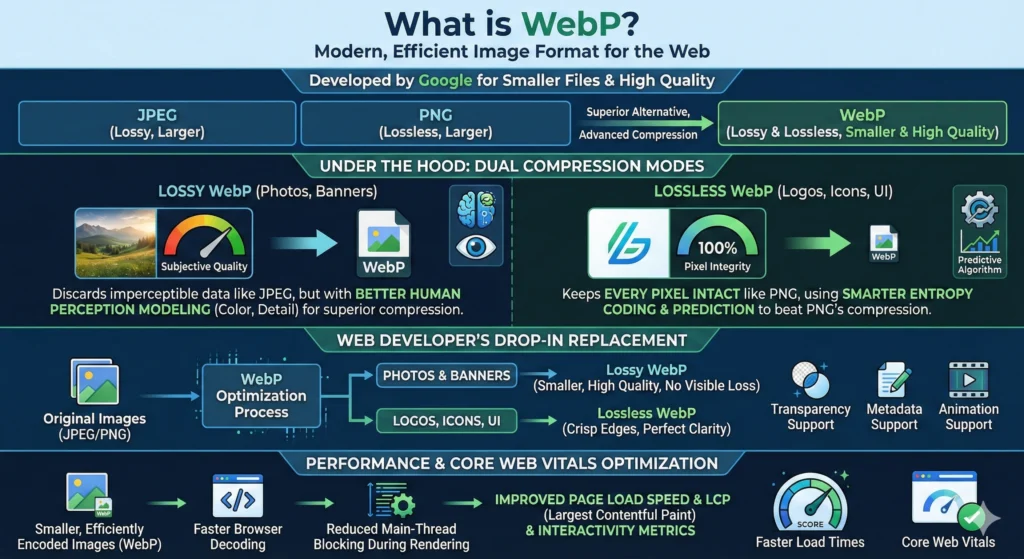
WebP is a modern image format originally developed by Google to reduce file size while keeping visual quality high, especially for the web. It was designed as a more efficient alternative to older formats like JPEG and PNG, combining advanced image compression techniques with web-focused features like transparency, metadata, and animation support.
Under the hood, WebP supports both lossy and lossless WebP conversion modes, which is unique compared with JPEG (lossy only) and closer to PNG (lossless only). The lossy side is broadly similar in spirit to how JPEG throws away imperceptible data, but WebP’s encoders do a better job modeling how the human eye perceives color and detail, which is why it achieves better compression at the same subjective quality. For lossless mode, WebP uses techniques like smarter entropy coding and better prediction to beat PNG’s compression while keeping every pixel intact.
From a web developer’s point of view, the important thing is that WebP can act as a drop-in replacement for most JPEGs and many PNGs while delivering noticeably smaller files. That makes it ideal when you want to optimize images without quality loss WebP WordPress users will complain about in product photos or portfolio shots. In practice, you can pick lossy WebP for photos and banners, and lossless WebP for logos, icons, and UI elements that need crisp edges.
Finally, WebP is designed with streaming and decoding performance in mind, which matters for page load speed improvement and Core Web Vitals optimization. Smaller, efficiently encoded images decode faster in the browser and reduce main-thread blocking during rendering, which helps your Largest Contentful Paint (LCP) and overall interactivity metrics.
WebP Benefits for WordPress
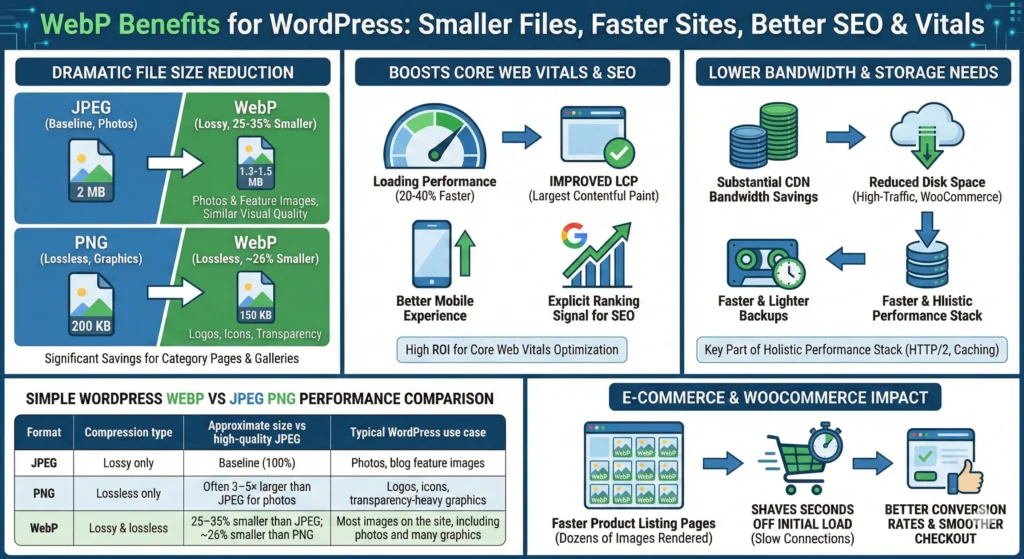
The headline benefit is file size reduction. Across multiple independent tests, WebP images are on average 25–35% smaller than JPEG at similar visual quality and about 26% smaller than comparable PNGs, often cutting a 2 MB JPEG down to 1.3–1.5 MB as WebP. For simpler graphics, a 200 KB PNG logo might shrink to roughly 150 KB as lossless WebP, which adds up quickly on category pages or galleries. This is the foundation for any serious WordPress WebP vs JPEG PNG performance comparison.
That file size reduction directly affects Core Web Vitals. Tests in 2025 showed that switching to WebP can improve real-world loading performance by 20–40% on image-heavy pages and significantly boost LCP scores, particularly on mobile connections. Better LCP and more stable layouts translate into measurable SEO gains because Google explicitly uses Core Web Vitals as ranking signals. If you’re trying to improve Core Web Vitals with WebP WordPress deployments, this is one of the highest ROI changes you can make.
WebP also reduces bandwidth usage and storage needs. On high-traffic WordPress sites or WooCommerce stores with thousands of products, a 25–35% reduction in image weight can save substantial CDN bandwidth and disk space while making backups faster and lighter. Combined with server-side optimization like HTTP/2, proper caching, and a CDN, WebP becomes a key part of a holistic performance stack rather than just an isolated tweak.
Here’s a simple WordPress WebP vs JPEG PNG performance comparison for typical web use:
| Format | Compression type | Approximate size vs high‑quality JPEG | Typical WordPress use case |
|---|---|---|---|
| JPEG | Lossy only | Baseline (100%) | Photos, blog feature images |
| PNG | Lossless only | Often 3–5× larger than JPEG for photos | Logos, icons, transparency-heavy graphics |
| WebP | Lossy & lossless | 25–35% smaller than JPEG; ~26% smaller than PNG | Most images on the site, including photos and many graphics |
For WooCommerce and other e‑commerce setups, these gains are especially impactful. Product-listing pages often render dozens of images; shrinking each by 25–35% can shave seconds off initial load on slow connections and is central to best practices for WebP images on WooCommerce sites. That in turn drives better conversion rates and a smoother checkout experience.
Browser Compatibility
One of the biggest historical concerns with WebP was browser support, but that’s largely solved now. By 2025, modern browsers representing about 95–98% of global usage—including Chrome, Edge, Firefox, and Safari—support WebP out of the box. This means that for almost all visitors, you can confidently serve WebP as the primary format.
Independent comparisons note that WebP is now effectively a first-class web format, not an experimental option, with support widely documented across browser vendors. With universal support on major browsers and platforms, browser fallback support is now mainly about handling older niche browsers or specialized environments rather than mainstream users. In most analytics dashboards, the remaining non-WebP traffic will be a small fraction.
The safest approach is to implement automatic fallback, either manually with picture tag implementation or via an automatic WebP image optimization WordPress plugin that detects browser capabilities. The usual pattern is:
- Use
<picture>with a<source type="image/webp">and a fallback<img>pointing to JPEG/PNG. - Let your plugin or CDN (for example, a WordPress site speed boost with Cloudflare WebP enabled) detect browser support and serve WebP or legacy formats accordingly.
If you’re using a plugin like ShortPixel, EWWW, Imagify, or Smush Pro, most of them already implement browser-aware serving of WebP, and some even support the newer AVIF image format as an optional next-gen layer. AVIF can compress even better than WebP, but due to more limited support, it’s best treated as a progressive enhancement on top of a solid WebP baseline.
Preparing WebP Images
Good input equals good output. Before you bulk convert images to WebP in WordPress, audit what you already have: hero images, featured images, product photos, logos, and UI sprites. Clean up duplicates, remove unused media, and ensure you’re not serving images far larger than their display size, since WebP can’t fix wasteful dimensions.
Next, decide your workflow: offline tools, online converters, or in-dashboard plugins. Design teams can export directly to WebP from modern tools like Photoshop or other editors, while site owners who don’t touch design files might rely on a bulk image converter built into their optimization plugin. For existing libraries, a plugin-based bulk convert images to WebP in WordPress workflow is usually easiest: you click a button, the plugin processes images in the background, and your templates update automatically.
For quality settings, a good starting point for lossy WebP is around 70–85 quality, which typically delivers substantial file size reduction without visible artifacts for most photos. For logos, icons, and UI graphics that must remain razor-sharp, enable lossless WebP conversion or keep those few assets as optimized PNGs where needed. The goal is to optimize images without quality loss WebP WordPress visitors will notice, which means testing on large hero images, gradients, and skin tones.
Finally, think SEO and accessibility while you prep images. Use descriptive filenames, consistent naming patterns, and alt text optimization to support semantic SEO images that help search engines understand context and users with assistive tech navigate your content. WebP doesn’t change how alt attributes work, so you can keep your existing SEO workflows while getting the performance benefits.
Implementing WebP in WordPress
There are two main paths: using native WebP support plus a bit of code, or relying on an automatic WebP image optimization WordPress plugin. Since WordPress 5.8, core lets you upload WebP images directly to the media library and insert them into posts, pages, and custom fields like any other image type, provided your server’s image libraries (GD or Imagick) support WebP. This is the foundation that makes it straightforward to enable WebP images in WordPress media library and build on top of it.
For a minimal native approach, you can:
- Export new images as WebP from your design tool.
- Upload them directly into the media library.
- Optionally use a small code snippet to convert newly uploaded JPEGs to WebP by adjusting the
image_editor_output_formatfilter in WordPress, which tells the image editor to output WebP variants.
However, most sites benefit more from plugins that automate conversion, compression, and delivery. A typical convert JPEG to WebP in WordPress tutorial today centers around picking a plugin, configuring compression levels, and then running a bulk optimization job on all existing media. These plugins also tend to integrate better with caching, CDNs, and lazy loading, which is critical when you want consistent page load speed improvement.
Here’s an overview of popular options when evaluating the best WebP plugins for WordPress speed optimization and planning how to use ShortPixel for WebP conversion WordPress setups in particular:
| Plugin | Key WebP / AVIF features | Pros for performance | Best fit |
|---|---|---|---|
| ShortPixel Image Optimizer | Converts JPEG/PNG/GIF to WebP and AVIF, strong compression, CDN option, auto WebP serving | Industry-leading JPEG compression (around 54% reduction), excellent mobile LCP results, flexible credit-based pricing | Image-heavy blogs, portfolios, WooCommerce, agencies managing many sites |
| EWWW Image Optimizer | Local or CDN-based optimization, WebP and AVIF support, automatic serving | Strong compression, especially with Easy IO CDN; cost-effective for high-volume sites | Privacy-sensitive sites, large catalogs needing server-side optimization |
| Imagify | WebP conversion, automatic serving, WP Rocket integration | Clean UI, solid compression, tight integration with broader performance stack | Users already using WP Rocket or preferring a simple dashboard |
| Smush / Smush Pro | Free compression, Pro adds WebP conversion and CDN delivery | Simple setup, unlimited images on Pro, good PNG lossy compression | Non-technical users, small to mid-sized sites wanting a set‑and‑forget tool |
With any automatic WebP image optimization WordPress plugin, the broad steps are similar:
- Install and activate the plugin from the official repository or vendor.
- Enable WebP (and optionally AVIF) conversion and browser-aware serving in settings.
- Choose compression level (start with “lossy” for most sites; move to more conservative settings if you see artifacts).
- Run the bulk optimizer to process existing media, ideally during low-traffic hours.
- Test key templates—homepage, top blog posts, product/category pages—for quality and performance before and after.
If you specifically want a WordPress site speed boost with Cloudflare WebP, you can combine one of these plugins with Cloudflare’s image optimization features. Cloudflare can detect WebP-capable browsers and serve WebP at the edge while your plugin handles compression and storage, giving you a hybrid client- and server-side optimization strategy.
Best Practices and Testing
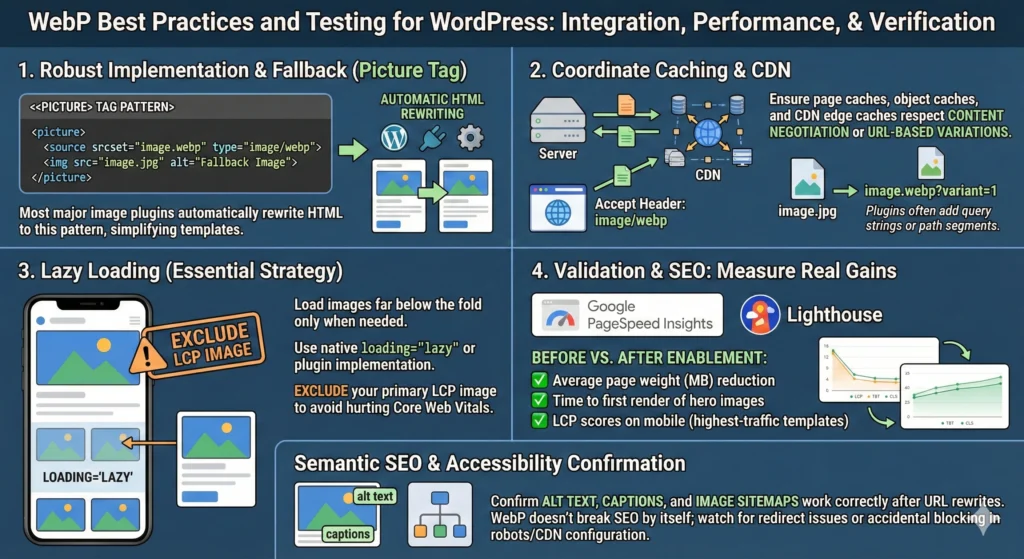
Once WebP is enabled, the next step is tightening integration and verifying real gains. For robust browser fallback support and clean markup, prefer picture tag implementation: <picture> with a WebP <source> and a fallback <img> for older browsers. Most major image plugins can automatically rewrite HTML in this pattern, letting you keep templates simple while still serving ideal formats.
Coordinate WebP with caching plugins WordPress users commonly rely on and any CDN you use. Ensure that page caches, object caches, and CDN edge caches respect content negotiation (e.g., the Accept header) or URL-based variations when serving WebP versus JPEG/PNG. Many plugins add query strings or path segments for WebP variants to make this easier, which you’ll see in your page source after optimization.
Lazy loading images remains essential even with WebP. While smaller files help, there’s no reason to load images that are far below the fold on initial render, especially on mobile. Use native lazy loading (loading="lazy") or your optimization plugin’s implementation, but exclude your primary LCP image (often the hero or main product photo), since lazy loading that particular image can actually hurt Core Web Vitals optimization instead of helping.
To validate improvements, run Google PageSpeed Insights and Lighthouse before and after enabling WebP. Watch metrics like LCP, total blocking time (TBT), and cumulative layout shift (CLS), and compare screenshot waterfalls to see how quickly images appear. For a practical “how to speed up WordPress with WebP images” check, measure:
- Average page weight (in MB) before vs. after WebP.
- Time to first render of hero images.
- LCP scores on mobile for highest-traffic templates.
Don’t forget semantic SEO images and accessibility in all this. Confirm that alt text, captions, and image sitemaps still work correctly after your plugin rewrites image URLs. WebP doesn’t break SEO by itself; problems only arise when URLs change without proper redirects or when you accidentally block next-gen images in robots or CDN configuration.
Common Issues and Fixes
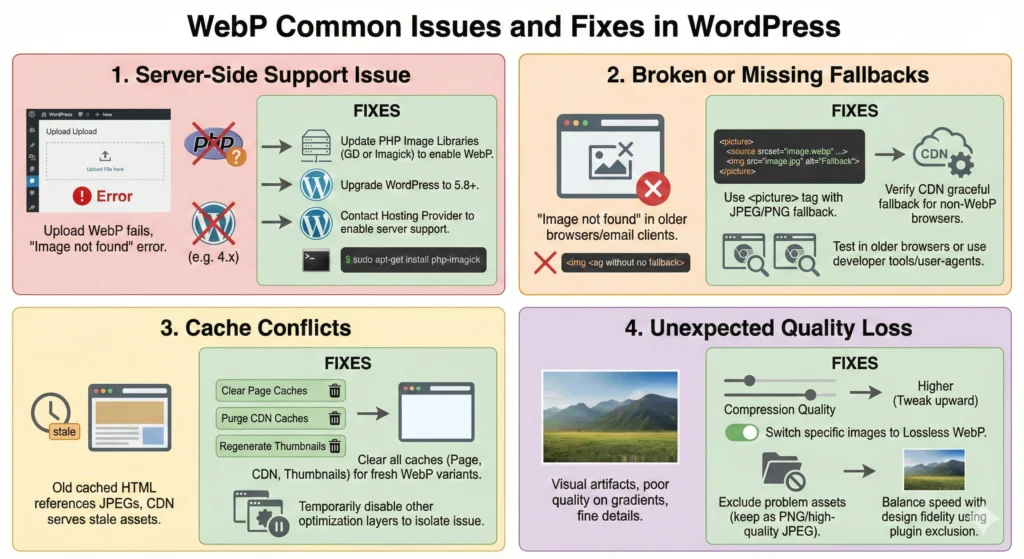
The most common issue is server-side WebP support. If you try to upload a WebP file and WordPress throws an error, it usually means your PHP image libraries (GD or Imagick) don’t have WebP enabled or you’re on an outdated WordPress version. WordPress 5.8 and later can handle WebP, but only if the server libraries cooperate, so you may need to ask your host to enable WebP or upgrade PHP/image libraries.
Another frequent problem is broken or missing fallbacks, which manifest as “image not found” icons in older browsers or strange behavior in email clients that pull content from your site. To fix image loading times WordPress WebP fallback problems, verify that your plugin is either using <picture> with a valid JPEG/PNG fallback or that your CDN gracefully falls back when a browser doesn’t support WebP. Testing in an older browser or using developer tools to simulate user agents can quickly surface these issues.
Cache conflicts are also common. After enabling WebP, your old cached HTML might still reference JPEGs, or your CDN might be serving stale assets without the new WebP variants. The remedy is straightforward: clear page caches, purge any CDN caches, and, if necessary, regenerate thumbnails so WordPress creates fresh sub-sizes in WebP. When troubleshooting, temporarily disable other optimization layers (like separate minification plugins) so you can isolate whether the issue lies with your WebP plugin, caching, or theme.
Occasionally, you’ll see unexpected quality loss or visual artifacts, especially on gradients, detailed textures, or graphics with fine text. In these cases, tweak compression settings upward (toward higher quality), switch specific images to lossless WebP, or keep a handful of problem assets in PNG or high-quality JPEG. A good plugin lets you exclude individual files or folders from optimization, which is critical for fine control and helps you balance speed with design fidelity.
Conclusion
If you want a fast, modern site in 2026, moving to WebP is no longer optional—it’s a baseline expectation. By taking a structured approach—auditing your media, using a solid plugin like ShortPixel, EWWW, Imagify, or Smush, and validating with Google PageSpeed Insights—you can reliably speed up slow WordPress site using WebP format without risking your design or SEO.
The quick wins are clear: enable WebP images in WordPress media library, set up one automatic WebP image optimization WordPress plugin for bulk conversion, cleanly integrate it with caching and your CDN, and verify Core Web Vitals improvements on your key templates. For heavier sites, consider adding AVIF image format support on top of WebP and leveraging Cloudflare or another CDN to push optimized images as close to users as possible. Follow this workflow, and you’ll have a practical, sustainable step by step guide WebP support WordPress 2026 teams can reuse across projects, not just a one-off tweak.