
Ollama vs LM Studio vs Jan: Smart Low-RAM Guide
Anyone with a normal laptop or desktop — no GPU cluster, no server rack — can experiment with open-weight AI models (models whose weights are published for anyone to download and run) using one of three popular tools: Ollama, LM Studio, or Jan. This guide is for readers with 8 GB, 16 GB, or 32 GB of system RAM who want a realistic picture of what each tool can do, not marketing promises. The core decision usually comes down to three things: whether a person wants a simple visual chat interface, a developer-friendly local API, or an open-source local-first desktop app. Low RAM narrows the realistic model choices no matter which tool is picked, so this guide leads with hardware reality before comparing the software.
Can You Run Local AI Without a Dedicated GPU?
A local AI runner is software that downloads a model’s weights (the numerical parameters that encode what the model has learned) and runs inference — the process of generating a response — directly on a personal computer, without sending data to a cloud server. Ollama, LM Studio, and Jan are all examples of this category, and all three can operate in CPU-only mode, meaning the computer’s processor does the math instead of a graphics card.
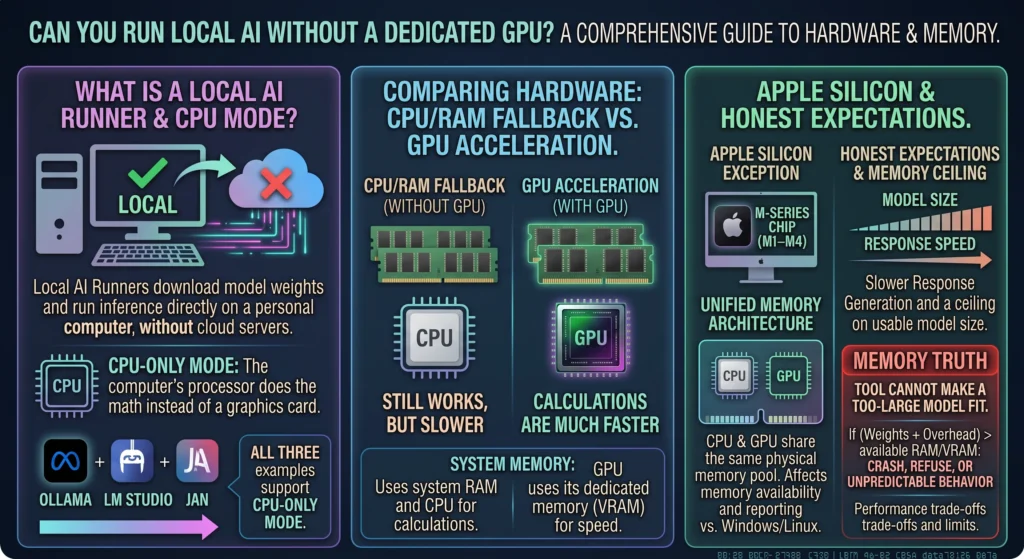
GPU acceleration uses a graphics card’s own dedicated memory, called VRAM, to store model data and run calculations much faster than a CPU typically can. Systems without a dedicated GPU fall back to system RAM and the CPU, which still works but is slower. Apple Silicon Macs (M1 through M4 chips) use a different architecture called unified memory, where the CPU and GPU share the same physical memory pool rather than having separate RAM and VRAM. This affects how much memory is available to a model and how LM Studio and Jan report requirements for Mac versus Windows or Linux.
The honest expectation for CPU-only or low-RAM setups is slower response generation and a ceiling on usable model size, not an inability to run anything at all. A tool cannot make a model that is too large for the available memory fit — if the model’s weights plus runtime overhead exceed available RAM (or VRAM, on GPU), the process will either crash, refuse to load, or partially load and behave unpredictably.
How Much RAM Do 7B and 8B Models Need?
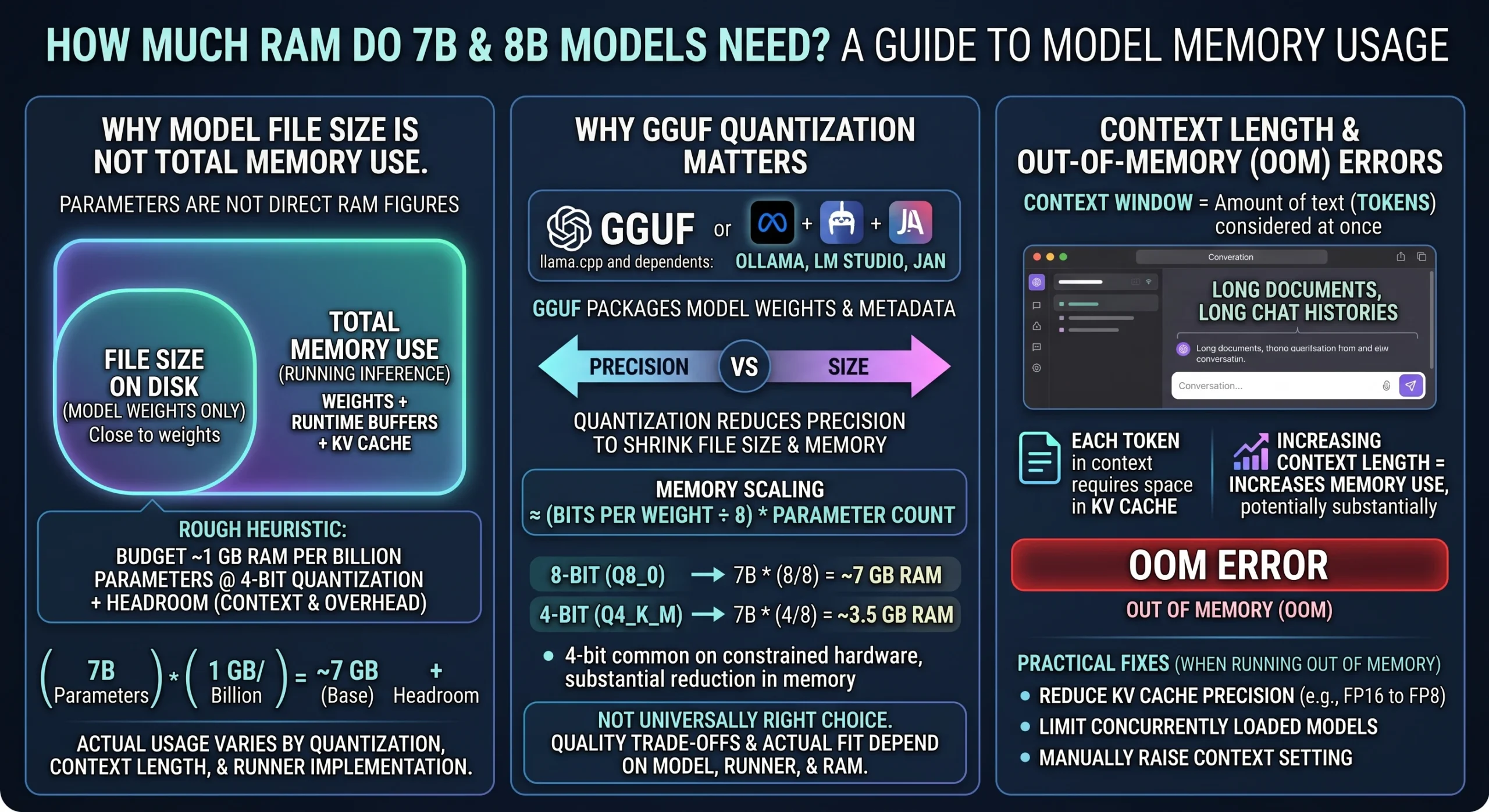
Why Model File Size Is Not Total Memory Use
A model labeled “7B” or “8B” refers to the number of parameters (roughly 7 billion or 8 billion), not a direct RAM figure. The file size on disk is close to the memory needed just to hold the model’s weights, but running inference also requires runtime buffers for computation and a KV cache (short for key-value cache, a working memory area that stores intermediate data from the conversation so the model does not have to recompute it for every new token). As a rough starting point, a common heuristic is to budget roughly 1 GB of RAM for each billion parameters at typical 4-bit quantization, then add headroom for context and overhead. This is a planning heuristic, not a guaranteed number, because actual usage varies by quantization level, context length, and the specific runner’s implementation.
Why GGUF Quantization Matters
GGUF is a file format used by llama.cpp and its dependent tools (including Ollama, LM Studio, and Jan) to package model weights along with metadata needed to run them. Quantization is the process of reducing the numerical precision of a model’s weights to shrink file size and memory use, at some cost to output quality. A model stored at 8 bits per weight uses roughly double the memory of the same model at 4 bits per weight, following the general formula that memory scales with (bits per weight ÷ 8) multiplied by parameter count. Four-bit quantization is common on constrained hardware because it substantially reduces memory footprint, but it is not universally the right choice — quality trade-offs and actual fit depend on the specific model, the runner, and available RAM, so no single quantization level “always works” on every PC.
Why Context Length Can Cause OOM Errors
The context window is the amount of text (measured in tokens, which are word or sub-word units) a model can consider at once, including the prompt and its own generated response. Every token held in the context window requires space in the KV cache, so increasing context length increases memory use, sometimes substantially, on top of the model’s base weight size. Long documents, long chat histories, or manually raised context settings can push total memory demand past what a system has available, producing an out-of-memory (OOM) error, where the operating system or the runner refuses or fails to allocate more memory. Reducing the KV cache precision and limiting the number of concurrently loaded models are practical, documented fixes when memory runs out.
What Can 8 GB, 16 GB, and 32 GB PCs Run?
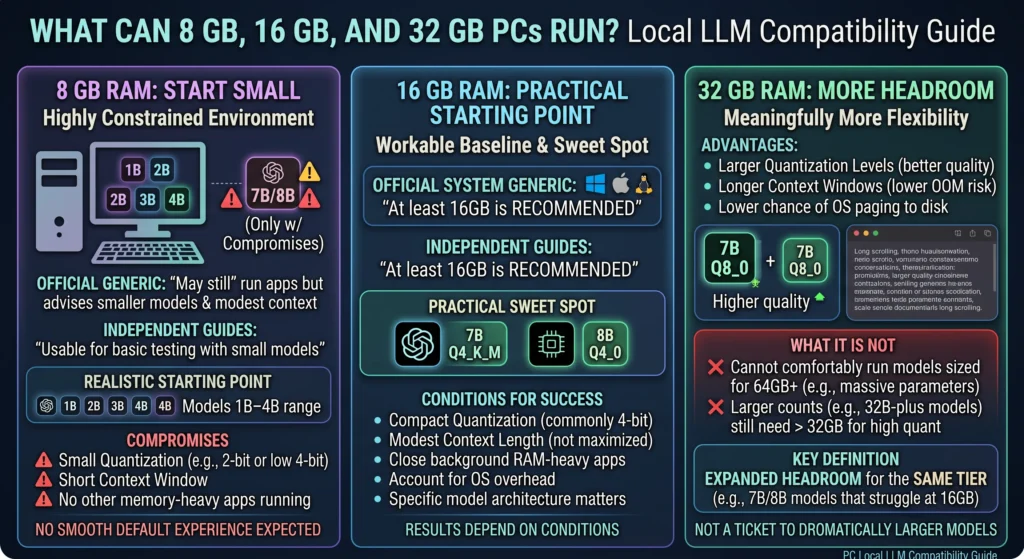
8 GB RAM: Start Small
Eight gigabytes of system RAM is a constrained environment for local LLMs once the operating system, browser tabs, and background apps have claimed their share. Official guidance for at least one major runner notes that 8 GB systems “may still” run the app but advises sticking to smaller models and modest context sizes rather than assuming standard performance. Independent installation guides describe 8 GB as usable “for basic testing with small models,” where limitations become noticeable quickly. Given this, models in the 1B–4B parameter range are a more realistic default starting point on 8 GB systems, and running a 7B or 8B model is possible only with real compromises — a small quantization, a short context window, and no other memory-hungry apps running — not something to expect as a smooth default experience.
16 GB RAM: A Practical Starting Point
Sixteen gigabytes is the level most often cited as a workable baseline. Official system requirements for at least one major runner state that “at least 16GB of RAM is recommended” across Windows, macOS, and Linux. Independent documentation and installation guides consistently repeat this 16 GB recommendation as a practical sweet spot for running many quantized 7B/8B models. Even at 16 GB, results depend on several conditions working together: a reasonably compact quantization (commonly 4-bit for this tier), a modest context length rather than a maximized one, closing other RAM-heavy background applications, accounting for the operating system’s own memory overhead, and the specific model architecture chosen.
32 GB RAM: More Headroom
Thirty-two gigabytes of RAM gives meaningfully more flexibility: larger quantization levels (which preserve more model quality), longer context windows without immediately risking an OOM error, and a lower chance that the operating system starts paging memory to disk under normal use. It does not, however, make every large model practical — a 32 GB system still cannot comfortably run models sized for 64 GB or more of memory, and larger parameter counts (such as 32B-plus models) still require substantially more RAM than 32 GB provides at higher-quality quantizations. Treat 32 GB as expanded headroom for the same tier of models that struggle at 16 GB, not as a ticket to run dramatically larger models.
Ollama vs LM Studio vs Jan
| Category | Ollama | LM Studio | Jan |
|---|---|---|---|
| Best for | Developers building local APIs and integrations | Beginners who want a visual chat app | Users who want an open-source, local-first desktop app |
| Interface style | Primarily command-line, with a lightweight desktop app | Full graphical desktop app with model browser | Full graphical desktop app with model browser |
| Ease for beginners | Moderate — some comfort with terminal/CLI helps | High — guided download-and-chat workflow | High — similar guided GUI workflow |
| Local API support | Built-in server with OpenAI-compatible endpoints | Built-in local server for developer use | Built-in OpenAI-compatible and Anthropic-compatible local API server |
| Model management | CLI pull commands and model library | In-app model discovery connected to a model browser | In-app hub plus manual GGUF import |
| Low-RAM strategy | Configurable idle unload setting; smaller quantized pulls | Smaller models/quantizations; caution advised on 8 GB systems | KV cache type adjustment; limit concurrent loaded models |
| Important limitation | No default GUI-first chat browsing experience | AVX2 CPU support required on Windows/Linux x64 | Local engine performance still bounded by same RAM/quantization limits as other llama.cpp-based tools |
Ollama: Best for Developers and Local APIs
Ollama’s core workflow centers on the command line: users pull a model with a command like ollama pull llama3, then run or query it, which suits developers who want to script, automate, or integrate a model into an application rather than chat with it in a window. Ollama documents a built-in server that offers OpenAI-compatible API endpoints, including chat completions, letting existing OpenAI SDK code point at a local address with minimal changes. Official documentation states that models are kept in memory for 5 minutes by default before being unloaded automatically, and that this behavior can be adjusted using a keep-alive parameter or environment variable, including setting it to unload immediately after a response. For low-RAM systems, practical Ollama advice includes choosing smaller quantized models, keeping context length modest, and either shortening the keep-alive duration or manually unloading a model once finished, so memory is freed for other tasks. The trade-off is that Ollama has a lighter graphical interface than LM Studio or Jan, so beginners without CLI comfort face a steeper learning curve.
LM Studio: Best for Visual Desktop Use
LM Studio provides a graphical desktop app where users browse and download models through a search interface, load a selected model into memory with a click, and chat with it in a familiar interface. Its documentation also describes local server functionality for developers who want to point custom code at LM Studio the same way as a cloud API, though the primary audience for the app is visual, guided use. LM Studio’s official system requirements explicitly require AVX2 instruction-set support for x64 CPUs on Windows and Linux, and this is enforced strictly enough that a recent version update made AVX2 mandatory rather than optional on Windows x64. Successfully installing LM Studio does not guarantee a 7B or 8B model will run well on a low-RAM machine — the app’s own documentation recommends at least 16 GB of RAM and notes that 8 GB systems should stick to smaller models and modest context, meaning installation success and model fit are two separate questions.
Jan: Best Open-Source Local-First Alternative
Jan positions itself as a free, open-source, local-first desktop app for running AI models entirely on a user’s own computer. For local inference, Jan uses llama.cpp as its local engine — official documentation describes llama.cpp as the engine that runs AI models locally on a computer, handling GGUF-format model files and detecting hardware backends such as CPU, CUDA (NVIDIA GPU acceleration), or Metal (Apple GPU acceleration). Jan’s local API server is OpenAI-compatible and also supports an Anthropic-compatible messages endpoint, running on a local address by default, which lets developers point existing OpenAI or Anthropic SDK clients at a fully local backend. Jan’s ideal user wants an open-source app with visual model management and the option of a local API without giving up llama.cpp’s flexibility, but low-RAM PCs still face the same fundamental limits as any llama.cpp-based tool: official troubleshooting guidance points to reducing KV cache precision and capping concurrent loaded models as the practical response to out-of-memory conditions, not a special workaround unique to Jan.
Which Runner Uses the Least Resources?
There is no verified, apples-to-apples benchmark comparing idle memory use across Ollama, LM Studio, and Jan that would support ranking them by baseline resource footprint, so this guide does not present one. What can be said with confidence is that a background or headless runtime (software that runs without a visible window) generally has a smaller idle footprint than a full desktop GUI app with a model browser, chat history, and rendering overhead, simply because it is doing less at idle. In practice, though, the loaded model’s weights and its active KV cache — not the interface itself — drive the largest share of memory use once a model is actually running, regardless of which of the three tools is loading it.
The practical decision rule is this: if the goal is background automation, scripting, or building an application that talks to a local API with minimal interface overhead, a CLI-first or headless-capable tool like Ollama tends to fit that use case. If the goal is visually browsing, testing, and comparing models with a graphical chat interface, LM Studio or Jan’s GUI-first design fits better, and the memory difference between running the same model through any of the three should be modest compared to the model’s own weight and cache footprint.
Make a Low-RAM PC More Stable
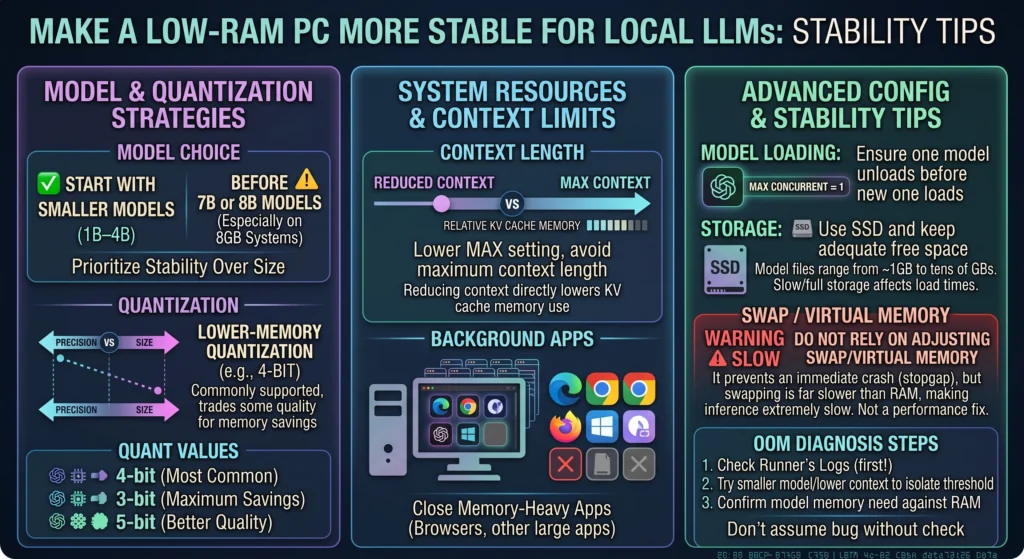
- Start with a smaller model (1B–4B parameters) before attempting a 7B or 8B model, especially on 8 GB systems.
- Use a lower-memory quantization (commonly 4-bit) when the model and runner support it, understanding this trades some output quality for memory savings.
- Reduce context length rather than using the maximum available setting, since longer context directly increases KV cache memory use.
- Close memory-heavy background apps (browsers with many tabs, other large applications) before loading a model.
- Keep only one model loaded at a time; setting a max concurrent models limit of 1 ensures a previous model unloads before a new one loads.
- Use SSD storage and keep adequate free disk space, since model files range from roughly 1 GB to tens of gigabytes and slow or full storage can affect load times.
- Do not rely on adjusting virtual memory or swap settings as a performance fix. Swapping — where the operating system uses disk space as an overflow for RAM — can prevent an immediate crash, but it makes inference extremely slow because disk access is far slower than RAM access; it is a stopgap, not a solution.
- To diagnose an OOM crash or freeze, check the runner’s own logs or terminal output first, try a smaller model or lower context to isolate the memory threshold, and confirm the model’s approximate memory need against installed RAM before assuming a software bug.
Common Problems and Fixes
| Problem | Likely cause | Practical fix |
|---|---|---|
| Model will not load | Insufficient RAM/VRAM for the chosen model and quantization | Try a smaller model or lower quantization; check the runner’s logs for the specific error |
| PC freezes or becomes unresponsive | System RAM exhausted, forcing heavy swap/paging | Force-quit the runner, close other apps, reduce model size or context before retrying |
| Replies are very slow | Running large model on CPU-only, or memory is paging to disk | Use a smaller/more compressed model; enable GPU acceleration if available; avoid relying on swap |
| Out-of-memory error | Model plus KV cache exceeds available RAM | Lower context length, use a smaller quantization, unload other models, limit concurrent models |
| GPU is not detected | Missing/outdated GPU drivers, or hardware backend not selected | Update GPU drivers; explicitly select the correct hardware backend in the app’s settings |
| Model download succeeds but the runner cannot use the file | Incompatible or corrupted GGUF file, or wrong import method | Re-download the file, confirm it is in GGUF format, and use the app’s official import feature |
FAQs
Can I run a 7B or 8B LLM on 8 GB RAM?
It is technically possible with a small quantization and a short context window, but official guidance frames 8 GB as suitable mainly for smaller models and basic testing, so treat a comfortable 7B/8B experience on 8 GB as unlikely rather than expected.
Do I need a dedicated GPU for Ollama, LM Studio, or Jan?
No. All three support CPU-only inference, though a GPU with sufficient VRAM speeds up response generation when available and properly detected.
Why does a GGUF model use more RAM than its file size?
Because inference needs additional runtime buffers and a KV cache to hold conversation context on top of the base model weights stored in the file.
Does a longer context window use more memory?
Yes. Every additional token held in context requires more KV cache space, so raising context length can significantly raise total memory use.
Which local AI runner is best for a low-end PC?
There is no single universal winner; the better choice depends on whether the person wants a GUI (LM Studio or Jan) or a CLI/API-first workflow (Ollama), since the underlying RAM constraints apply to all three similarly.
Is Ollama or LM Studio better for coding projects?
Ollama’s built-in OpenAI-compatible API and CLI-first design make it easier to wire directly into coding tools and automated workflows, while LM Studio is better suited to manually testing and comparing models through its chat interface.
Can I run Ollama and LM Studio on the same PC?
Yes, since both are independent applications, though running two model runners at once increases combined memory demand, so avoid loading large models in both simultaneously on a low-RAM system.
How can I free RAM after using a local model?
In Ollama, models unload automatically after a default 5-minute idle period, or immediately via a specific unload setting or CLI command. In Jan, limiting max concurrent models to 1 unloads the previous model when a new one loads.
Is local AI fully private?
Running a model locally through Ollama, LM Studio, or Jan means prompts and responses are processed on-device rather than sent to an external server by the runner itself, which supports offline and private use, though overall privacy still depends on the specific app configuration and any additional integrations a user connects.
Final Verdict: Which Local AI Runner Should You Choose?
LM Studio suits beginners who want the most guided, visual model discovery and chat experience with minimal setup friction. Ollama suits developers who want to build local APIs, automations, or applications around a CLI-first tool with documented OpenAI-compatible endpoints. Jan suits users who specifically want an open-source, local-first desktop app with both a GUI and an OpenAI/Anthropic-compatible local API built on llama.cpp. Across all three, 8 GB RAM users should begin with 1B–4B models and modest expectations, while 16 GB RAM users are in a more realistic position to test appropriately quantized 7B/8B models, with 32 GB providing extra headroom rather than a guarantee that any large model will fit.