
Effortless Gmail Mastery: Organize Your Inbox Like a Pro
Introduction: Why Your Gmail Is a Mess (And Why It Matters)
If you open Gmail and instantly feel your shoulders tense, you are not alone. Most inboxes are a mix of newsletters, receipts, promotions, work threads, and personal messages, all fighting for attention. That constant low‑grade chaos quietly drains focus, makes important emails easy to miss, and turns “just checking email” into an all‑day distraction.
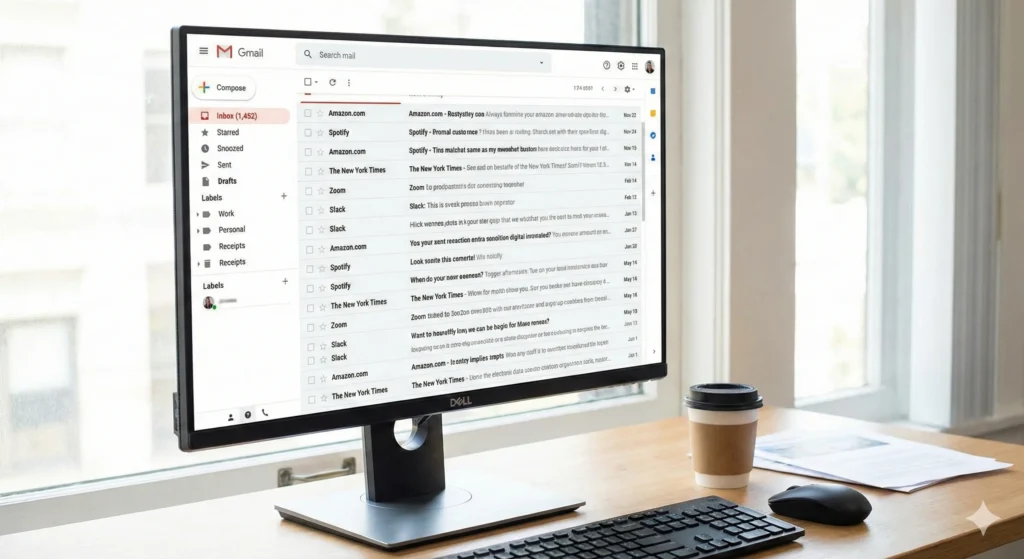
The good news: Gmail actually has excellent tools for organization—labels, filters, inbox types, search operators, and a few smart add‑ons. Used together, they can turn Gmail into a calm, mostly self‑running system instead of a noisy to‑do list. By the end of this guide, you will know how to:
- Declutter a messy inbox quickly without losing important mail
- Set up simple, effective Gmail labels and organize labels so they actually help
- Create and manage filters in Gmail to automate routine sorting
- Choose the best way to organize your Gmail inbox type for how you work
- Understand Gmail folders vs labels (and why “organize Gmail folders” really means using labels)
- Organize emails in Gmail by sender and by date when you need to batch‑clean
- Use light‑weight tools and AI to organize Gmail if you get a lot of email
You do not need to be technical; you just need a simple structure and a few core habits.
1. Understand How Gmail Thinks About Email
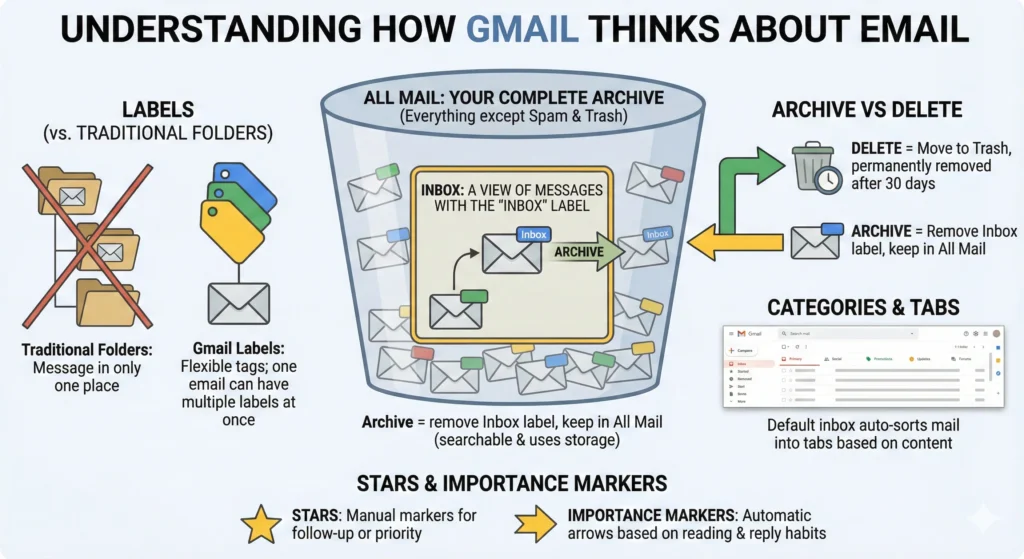
Before you organize Gmail, it helps to understand how Gmail itself “thinks” about messages. This is the piece most people skip—and it’s why their systems feel confusing.
Key concepts in Gmail’s model:
- All Mail: Think of this as your complete email archive—everything you have that is not in Spam or Trash.
- Inbox: This is a view of all messages that currently have the special “Inbox” label. When you archive, Gmail simply removes the Inbox label and the email remains in All Mail, fully searchable.
- Labels (instead of folders): Gmail does not use traditional folders; it uses labels, which are like flexible tags. An email can have multiple labels at once, which is impossible with classic folders where a message can live in only one place.
- Archive vs Delete:
- Categories & Tabs: With the Default inbox, Gmail can auto‑sort mail into tabs like Primary, Social, Promotions, Updates, and Forums.
- Stars and Importance Markers:
Once you see everything as “one big bucket of mail plus labels and views,” Gmail organization becomes much less mysterious.
2. Step Zero: Declutter Before You Organize
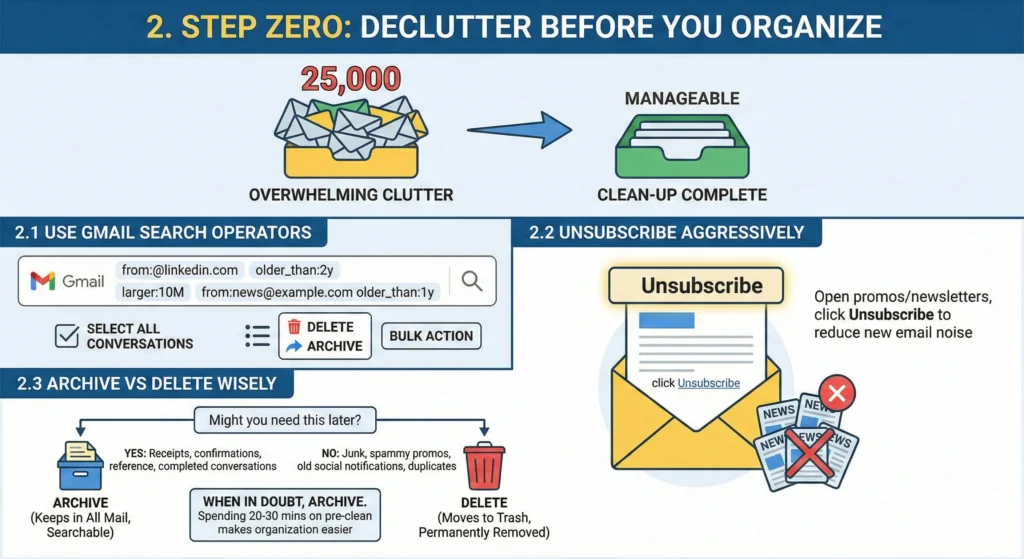
Trying to design the best way to organize emails in Gmail while staring at 25,000 unprocessed messages is overwhelming. First, do a quick clean‑up so you are organizing a manageable set.
2.1 Use Gmail search to find big chunks of noise
Gmail’s search operators let you pull up entire groups of emails by sender, date, size, or type. A few especially useful ones:
- By sender (great for newsletters, apps, or old client threads):
from:news@example.comfrom:@linkedin.com(all LinkedIn alerts)
- By date or age (for very old stuff):
- By size / attachments (to free space quickly):
Combine them to be very specific, for example:from:news@example.com older_than:1y or before:2021/01/01 larger:5M.
Once results appear, use the checkbox at the top to select all visible messages, then the link to “Select all conversations” in that search and delete or archive in bulk.
2.2 Unsubscribe aggressively
As you find newsletters and promos you never read, open one and click Unsubscribe (either the link in the message or Gmail’s built‑in “Unsubscribe” banner). Regular unsubscribing is one of the fastest ways to reduce new email noise.
2.3 Choose archive vs delete wisely
Use this simple rule:
- Archive messages you might want later—receipts, confirmations, booking details, reference info, completed conversations.
- Delete obvious junk you know you will never need—spammy promos, old social notifications, duplicates.
When in doubt, archive. Archiving hides mail from the inbox but keeps it in All Mail permanently unless you later delete it.
Spending even 20–30 minutes on this “pre‑clean” makes the next steps much easier.
3. Using Gmail Labels to Categorize Your Emails
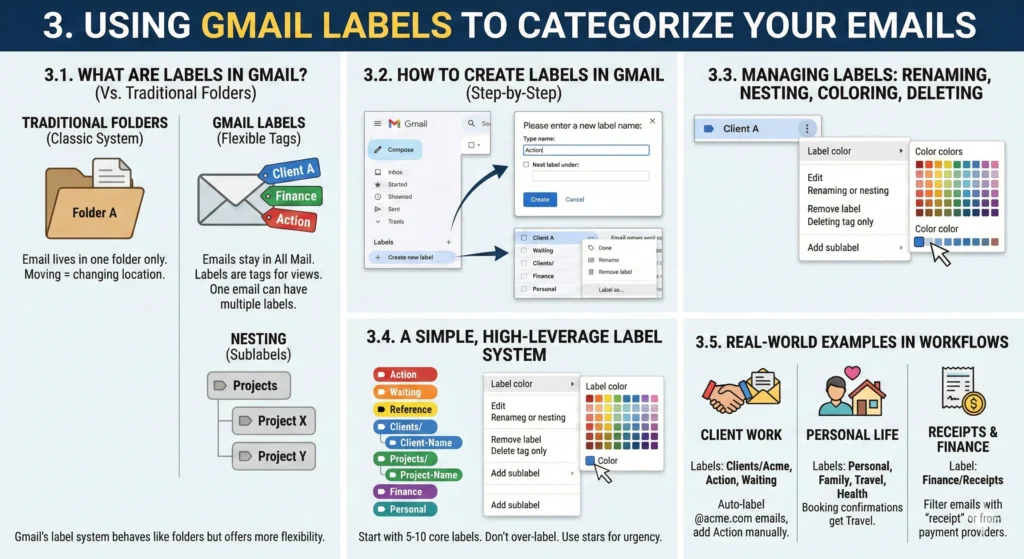
3.1 What are labels in Gmail? (And why they beat folders)
Labels in Gmail are tags you attach to emails so you can group and find them later.
How labels differ from traditional folders:
- Emails stay in All Mail; labels are just tags for views.
- One email can have multiple labels (e.g., “Client A”, “Finance”, “Action”), which is not possible in classic folder systems.
- You can nest labels (sublabels) to mimic folders and subfolders when you want more structure.
So when people search for “how to organize Gmail folders” or “how to organize Gmail into folders,” what they really want is a label system that behaves like folders.
3.2 How to create labels in Gmail (step‑by‑step)
On desktop Gmail:
- In the left sidebar, scroll down to the Labels section or click More if needed.
- Click Create new label (or the plus icon next to “Labels”).
- Type a clear name like
Action,Clients, orFinance. - To create a sublabel (nested label), tick Nest label under and choose the parent label.
- Click Create.
You can also:
- Right‑click any email → Label as… → create a new label right from there.
- In Settings → Labels, create, hide/show, or remove labels from sidebars and messages.
3.3 Renaming, nesting, coloring, and deleting labels
Rename or nest an existing label:
- Hover over the label name in the left sidebar.
- Click the three dots (More) next to it.
- Choose Edit to rename it or change which label it is nested under.
Color‑code your labels:
- Hover over the label → three dots.
- Select Label color.
- Choose a color or add a custom color. Color makes your most important labels stand out visually.
Delete a label (without deleting emails):
- Hover over the label → three dots → Remove label.
- Emails keep existing content; you just remove that tag.
3.4 A simple, high‑leverage label system
Productivity consultants generally recommend starting with 5–10 core labels so you do not spend more time organizing than reading email. For most professionals, a good starter set for organizing Gmail labels is:
- Action – things you need to do
- Waiting – things you are waiting on from others
- Reference – information you may need later (manuals, how‑tos, policy info)
- **Clients/**Client‑Name – one parent “Clients” label; nested labels for each client or account
- **Projects/**Project‑Name – one parent “Projects” label with sublabels per project
- Finance – receipts, invoices, bank notifications
- Personal – family, friends, personal admin
How to avoid over‑labeling in Gmail organization:
- Do not create a label for every micro‑topic. Start broad.
- Use stars or importance markers for urgency; use labels for what it relates to.
- If a label has almost no emails after a month, merge it into something broader or delete it.
3.5 Real‑world examples of labels in workflows
- Client work:
- Labels:
Clients/Acme,Clients/Globex,Action,Waiting. - All incoming mail from
@acme.comis auto‑labeledClients/Acme(filtering later). You then manually addActionif something needs work.
- Labels:
- Personal life:
- Labels:
Personal,Family,Travel,Health. - Booking confirmations get
Travel; lab test results getHealth. When you need a document, you just search label:Healthor label:Travel.
- Labels:
- Receipts and finance:
- Label:
Finance/Receipts. - Filter: all emails with “receipt” in the subject or from payment providers like
from:noreply@amazon.comgo there automatically.
- Label:
With labels in Gmail doing the categorizing, the next step is to let filters in Gmail do the heavy lifting automatically.
4. Automate Gmail with Filters: A Complete Guide
4.1 What filters are and why they matter
Filters in Gmail are rules that automatically act on incoming messages based on conditions you define—sender, subject, keywords, size, and more. They can:
- Apply labels
- Skip the inbox (archive)
- Mark as read or important
- Forward to another address
- Delete low‑value emails
This is the automation engine of Gmail. Once you know how to create filters in Gmail well, your inbox starts organizing itself.
4.2 How to create filters in Gmail (step‑by‑step)
Method 1: From Settings (full control)
- Click the gear icon → See all settings.
- Go to Filters and Blocked Addresses.
- Click Create a new filter.
- Fill in one or more fields:
- Click Create filter. Gmail shows actions to take.
- Choose actions such as:
- Skip the Inbox (Archive it)
- Apply the label → pick an existing label or create a new one
- Mark as important / Star it / Mark as read
- Delete it
- Optionally tick Also apply filter to matching conversations to retro‑apply it (use cautiously).
- Click Create filter to save.
Method 2: From a search (safer for beginners)
- Type your search in the Gmail search box and test it first—for example:
from:news@site.comorsubject:(receipt). - Click the sliders icon (advanced search) and confirm the fields.
- Click Create filter at the bottom of that search window.
- Choose actions, then create the filter.
Testing the search first is the best way to avoid mis‑sorting important emails.
4.3 How to edit filters in Gmail and manage them over time
To manage filters in Gmail:
- Click Settings → See all settings → Filters and Blocked Addresses.
- You will see a list of all your filters.
- To change one, click Edit next to it. Adjust the criteria or actions, click Continue, then Update filter.
- To remove it, click Delete and confirm.
You can also export and import filters from this page if you want to reuse them across accounts.
4.4 Essential starter filters (copy these ideas)
Here are practical examples of how to set up filters in Gmail that most busy users benefit from:
- Newsletters and promotions
- Receipts and finance
- Your manager or VIP senders
- Criteria:
from:boss@company.com OR from:ceo@company.com. - Actions:
- Apply label:
PriorityorManager - Mark as important
- Never send to Spam
- Apply label:
- Criteria:
- Social notifications
- Criteria:
from:@facebookmail.com OR from:@twitter.com OR from:@linkedin.com. - Actions:
- Apply label:
Social - Skip the Inbox
- Apply label:
- Criteria:
- Project‑specific filters
- Criteria:
subject:(Project X)orfrom:@projectvendor.com. - Actions:
- Apply label:
Projects/Project X - Optionally skip the Inbox if you prefer to process by label.
- Apply label:
- Criteria:
Industry best practice is to start with just 3–5 well‑targeted filters and expand gradually as you observe your email patterns.
4.5 Common filter mistakes to avoid
- Criteria too broad – Using only a generic keyword like “report” can grab unrelated mail. Test the search first.
- Auto‑deleting important mail – Be very careful with filters that delete mail. Prefer archiving plus labels unless you are absolutely sure.
- Overusing “Also apply filter to matching conversations” – For new filters, apply only to new mail until you trust them.
Once filters in Gmail are stable, they become your silent email organizers.
5. How to Organize Your Gmail Inbox for Maximum Productivity
Labels and filters control what happens to email. Your inbox type controls how you see it.
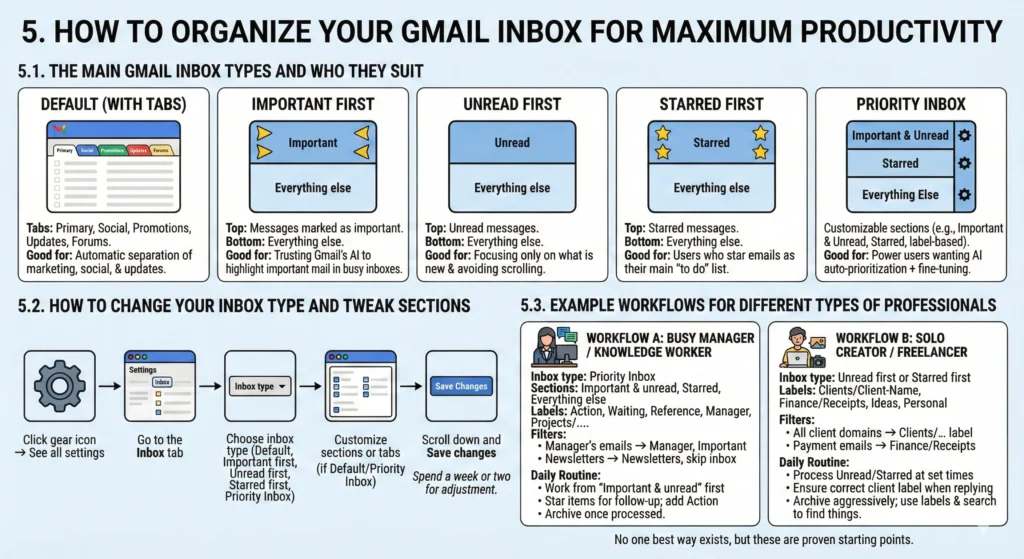
5.1 The main Gmail inbox types and who they suit
Gmail offers several inbox layouts.
- Default (with tabs)
- Important first
- Unread first
- Starred first
- Priority Inbox
5.2 How to change your inbox type and tweak sections
On desktop:
- Click the gear icon → See all settings.
- Go to the Inbox tab.
- Under Inbox type, choose Default, Important first, Unread first, Starred first, or Priority Inbox.
- If you choose Default, you can pick which category tabs to show (Primary, Social, Promotions, Updates, Forums).
- With Priority Inbox, customize sections (e.g., “Important and unread,” then a label‑based section like “label:Action”).
- Scroll down and Save changes.
Spend a week or two with a layout before changing again; give your brain and Gmail’s AI time to adjust.
5.3 Example workflows for different types of professionals
Workflow A: Busy manager / knowledge worker
- Inbox type: Priority Inbox.
- Sections:
- Important and unread
- Starred
- Everything else
- Labels:
Action,Waiting,Reference,Manager,Projects/.... - Filters:
- Manager’s emails → label
Manager, mark as important. - Newsletters → label
Newsletters, skip inbox.
- Manager’s emails → label
- Daily routine:
- Work from “Important and unread” first.
- Star anything that needs follow‑up; add
Action. - Archive once processed.
Workflow B: Solo creator / freelancer
- Inbox type: Unread first or Starred first.
- Labels:
Clients/Client‑Name,Finance/Receipts,Ideas,Personal. - Filters:
- All client domains → appropriate
Clients/...label. - Payment and platform emails →
Finance/Receipts.
- All client domains → appropriate
- Daily routine:
- Process Unread or Starred at set times.
- When replying to client threads, make sure correct client label is applied.
- Archive aggressively; use labels and search to find things later.
There is no “one best way to organize Gmail inbox” for everyone, but these patterns are proven starting points.
6. Gmail Folders vs Labels: Understanding the Difference
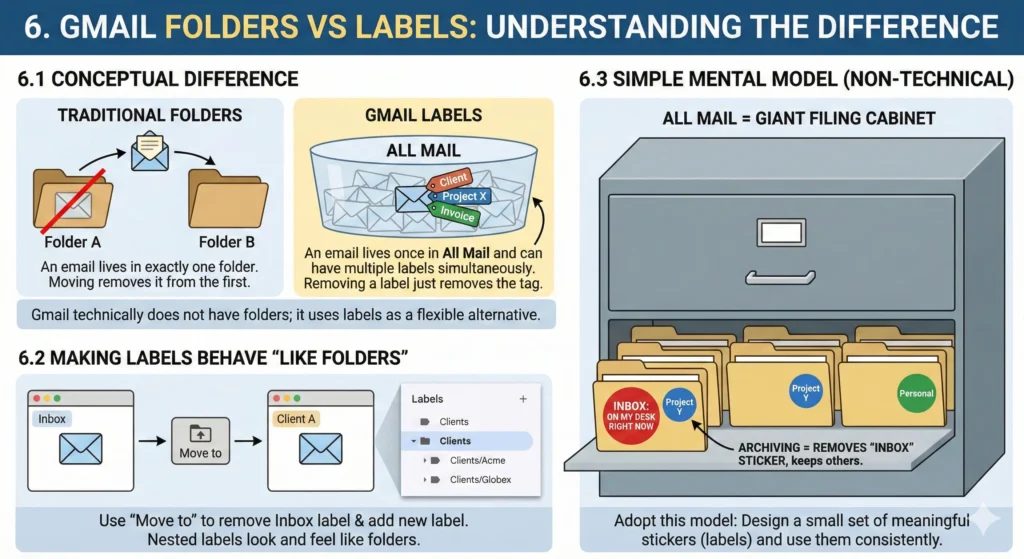
Many people search for “Gmail folders vs labels” and “how to organize Gmail into folders” because they are used to Outlook‑style folders. Here is the mental model that actually matches how Gmail works.
6.1 Conceptual difference
- Traditional folders:
- An email lives in exactly one folder at a time.
- Moving it to another folder removes it from the first.
- Gmail labels:
So technically, Gmail does not have folders at all; it uses labels as a more flexible alternative.
6.2 Making labels behave “like folders”
If you prefer the old “out of sight, out of mind” folder style, you can treat each label as a folder:
- Apply the label you want.
- Use the Move to button in Gmail to remove Inbox and add the label, which makes it feel like you moved the email into that “folder”.
- Click the label name in the sidebar to “open” that folder‑view.
Nested labels (like Clients/Acme, Clients/Globex) look and feel very similar to folders and subfolders in desktop clients.
6.3 Simple mental model for non‑technical readers
Think of Gmail like this:
- All Mail = giant filing cabinet.
- Labels = colored stickers on each file (you can put more than one sticker on the same file).
- Inbox = a special sticker meaning “on my desk right now.” Archiving just removes that sticker but keeps all the others.
Once you adopt this model, “how to organize Gmail labels” and even “how to organize folders in Gmail” both translate into the same task: design a small set of meaningful stickers and use them consistently.
7. Advanced Organization: Sort Gmail by Sender and Date
Gmail does not have a traditional “Sort by sender” or “Sort by date” drop‑down like some desktop apps, but you can do the same and more using search and filters.
7.1 How to organize Gmail by sender
To batch‑process emails from a person or company:
- In the search bar, type
from:name@example.comorfrom:@domain.com. - Press Enter to see all messages from that sender or domain.
- Select all, then:
- Apply a label like
Clients/AcmeorNewsletters. - Archive them if they are reference‑only.
- Delete if they are junk.
- Apply a label like
This is the core trick behind organizing Gmail by sender when you are cleaning up after months (or years) of ignoring marketing and notification emails.
You can refine it further:
from:@linkedin.com older_than:1y– old social notifications to delete.from:client@company.com newer_than:6m– recent client threads to label and keep.
7.2 How to organize Gmail by date
To work through a specific time period:
- Before a date:
before:2023/01/01– all mail before 2023. - After a date:
after:2023/07/01– all mail after 1 July 2023. - Between dates:
- By age:
Again, search, then select all, then apply labels, archive, or delete. This is the practical way to do “organizing Gmail by sender and date” without manual scrolling.
7.3 Turn these searches into filters
If you routinely want certain senders or time‑based patterns to auto‑file:
- Run the search and confirm it returns exactly what you expect.
- Click the advanced‑search sliders icon.
- At the bottom of that panel, click Create filter.
- Choose actions (label, archive, etc.) and save.
This is how you turn one‑off “gmail organize by sender” clean‑ups into ongoing automation.
8. Gmail Organization Tips for Professionals
Here are practical Gmail organization tips that work well for busy but non‑technical professionals:
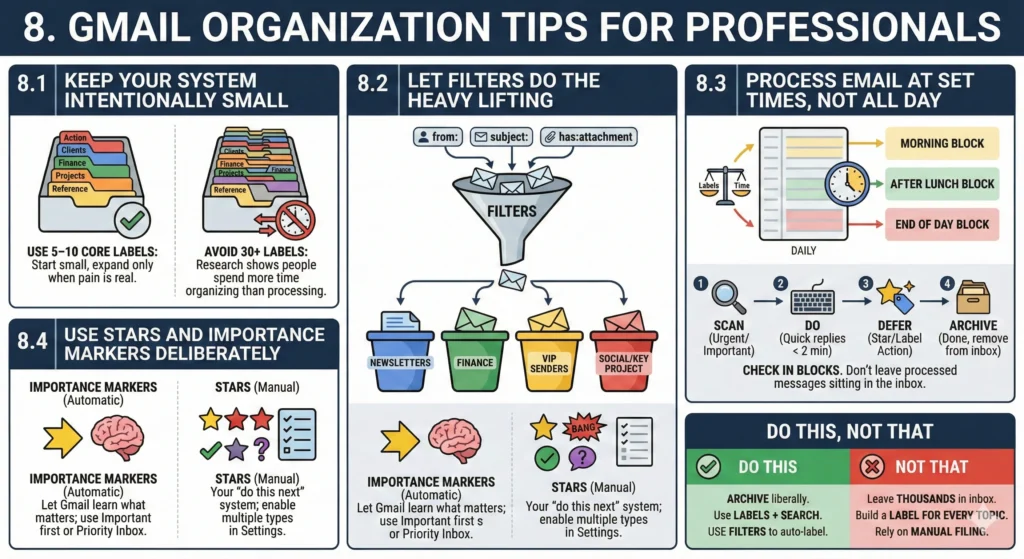
8.1 Keep your system intentionally small
- Use 5–10 core labels at first; expand only when missing categories becomes a real pain.
- Avoid having 30+ active labels; research shows people then spend more time organizing than processing mail.
8.2 Let filters do the heavy lifting
- Aim for 3–5 essential filters first: newsletters, finance, VIP senders, social, and maybe a key project.
- Use specific criteria (
from:,subject:,has:attachment) to avoid mis‑sorting important emails. - Periodically review Settings → Filters and Blocked Addresses to refine them.
8.3 Process email at set times, not all day
- Check email in blocks (for example, morning, after lunch, end of day) instead of reacting every few minutes.
- Inside each block, use this mini‑workflow:
8.4 Use stars and importance markers deliberately
- Use importance markers (Gmail’s yellow arrows) to let Gmail learn what matters; choose Important first or Priority Inbox to take advantage of them.
- Use stars as your manual “do this next” system; you can enable multiple star types in Settings → General → Stars and cycle through them by clicking.
Do this, not that:
- Do archive liberally; do not leave thousands of read emails in the inbox.
- Do use labels + search to find things; do not build a label for every topic you can imagine.
- Do use filters in Gmail to auto‑label routine messages; do not rely on manual filing for newsletters and notifications forever.
9. Best Gmail Organization Tools and Extensions
Gmail’s built‑in tools are enough for most people, but if you handle very high volumes or work in specific roles (sales, support, marketing), external Gmail organization tools can help. Here are a few categories and examples:
9.1 Bulk cleaners and “email organizer for Gmail” tools
- Tools like Mailstrom help you delete, archive, and move messages in bulk, with features for batch unsubscribes and sender blocking—useful when you need a one‑time deep clean.
- These tools act as a Gmail inbox organizer by grouping mail by sender, subject, or time period so you can clear thousands of emails with a few clicks.
Best for: people with tens of thousands of unorganized emails who need a reset.
9.2 Use AI to organize Gmail
- AI assistants like Mailmeteor’s Gmail AI Email Assistant offer “auto‑organize your inbox with smart labels” and help triage, draft replies, and track email engagement—all directly inside Gmail.
- Workflows like an AI email organizer for Gmail built with automation platforms (for example, tagging emails based on AI‑generated categories and then mapping them to labels) can further automate complex inboxes.
Best for: high‑volume senders, sales teams, support, or anyone who wants to use AI to organize Gmail beyond basic rules.
9.3 How to choose the right Gmail organizer tools
- If your biggest problem is backlog, start with a bulk email organizer for Gmail to get down to a manageable base.
- If your problem is daily volume and prioritization, an AI‑powered gmail email organizer that applies smart labels and suggests replies may be worth exploring.
- Always lock in a solid foundation of labels and filters in Gmail first; tools should extend, not replace, the core organization system.
10. Simple Daily and Weekly Maintenance Routine
A clean Gmail system is not a one‑time project; it is a light routine. Here is a realistic, low‑effort maintenance plan.
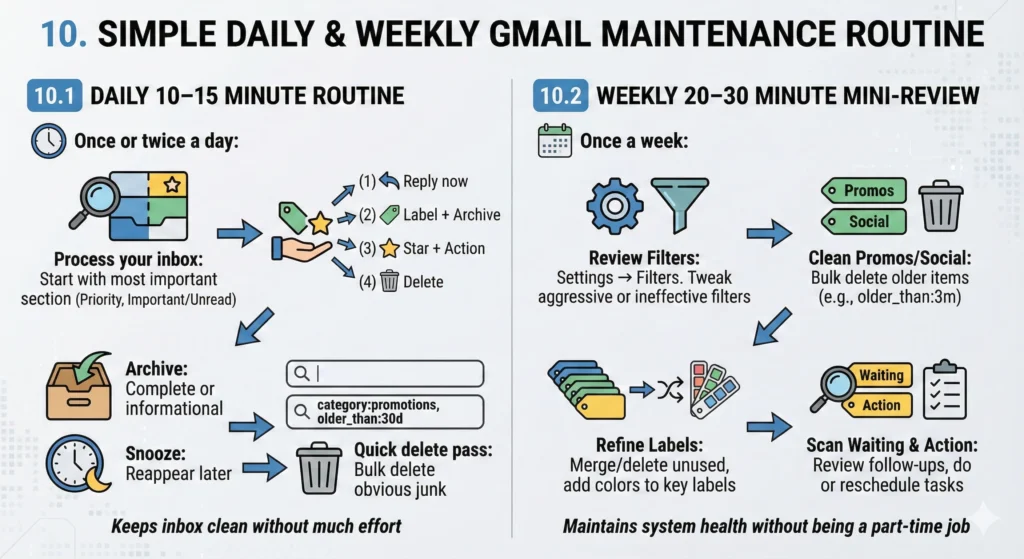
10.1 Daily 10–15 minute routine
Once or twice a day:
- Process your inbox
- Apply labels and stars
- As you open each email, decide: reply now, label + archive, star +
Action, or delete.
- As you open each email, decide: reply now, label + archive, star +
- Archive or snooze
- Quick delete pass
10.2 Weekly 20–30 minute mini‑review
Once a week:
- Review filters
- Clean Promos, Social, and low‑value labels
- Refine labels
- Scan “Waiting” and “Action”
- Review
Waitingfor follow‑ups you are owed. - Clean
Actionby either doing the work or rescheduling it into your real task system.
- Review
This small routine keeps your Gmail inbox organization healthy without becoming a part‑time job.
Conclusion and Next Steps
Gmail is not just a pile of messages; it is a flexible system built around labels, filters, and customizable inbox views. Once you understand that All Mail is your permanent archive, labels replace folders, archive is safer than delete for most messages, and filters are your automation engine, organizing Gmail stops feeling mysterious and starts feeling manageable.
There is no need to build a perfect system on day one. Start small: create 3–5 core labels (such as Action, Waiting, Clients, Finance, Personal) and 3–5 practical filters (newsletters, promotions, receipts, VIP senders, social notifications). Let those run for a couple of weeks, then adjust based on what actually lands in your inbox.
Over time, with a clear inbox structure and a simple daily/weekly routine, Gmail becomes far less stressful and far more supportive of how you work. Your inbox turns from a source of anxiety into a reliable, mostly automated command center—and you spend your time acting on important messages instead of hunting for them.